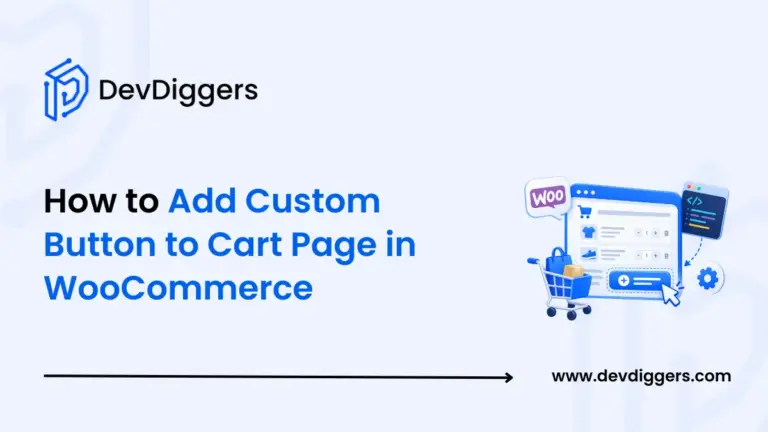
To add custom button to cart page in WooCommerce, hook a small PHP function into one of four cart action hooks, then style it with a few lines of CSS. No plugin required, and it takes about ten minutes once you know which hook to use.
Most tutorials show you exactly one hook and stop there. That’s fine if your button happens to fit that one spot. It’s not fine if you wanted the button sitting right next to “Proceed to Checkout.” That’s where most store owners want it. Almost nobody explains how to put it there.
This guide covers all four placement options with working code for each. You’ll also get styling, an AJAX version that skips the page reload, and what to do when the button refuses to show up.
Why Add Custom Button to Cart Page in WooCommerce?
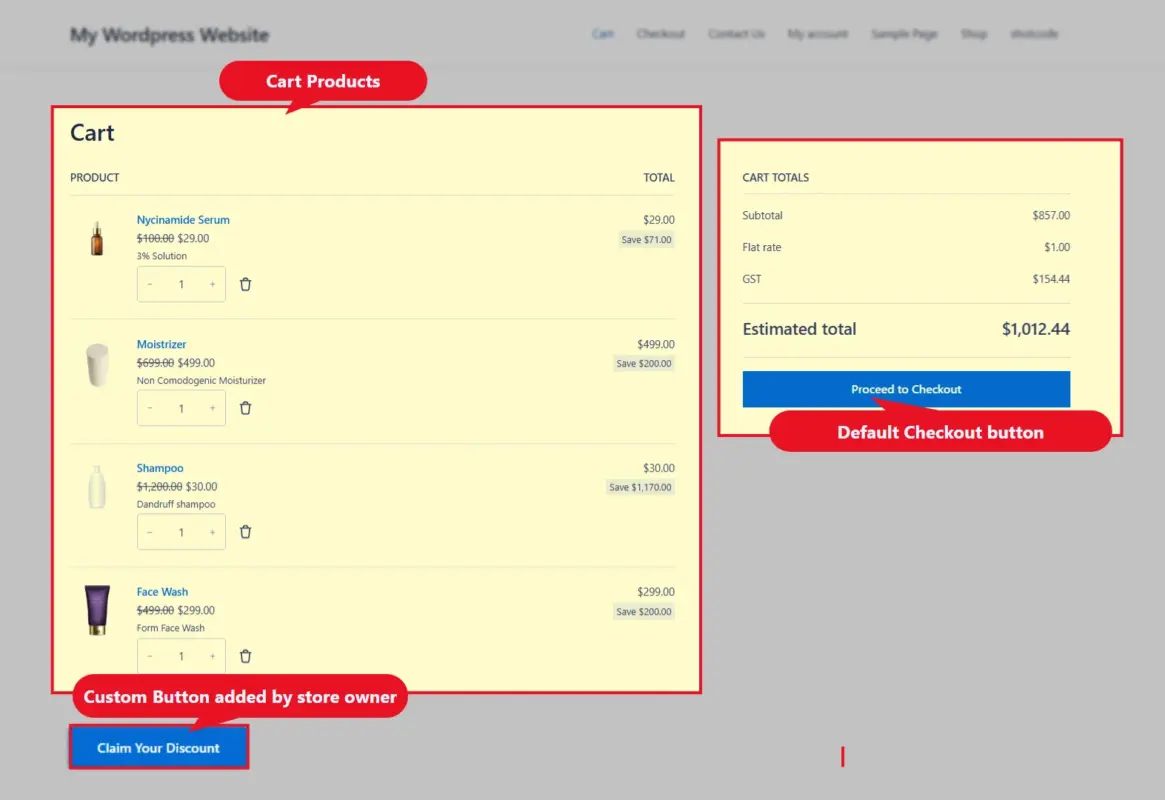
The default WooCommerce cart page ships with two buttons: “Update cart” and “Proceed to Checkout.” That’s it. Want to encourage shoppers toward anything else? A promo, a support chat, an upsell, a coupon they haven’t claimed yet. None of that exists by default. You need a button.
A few real reasons stores add one:
- Cut cart abandonment: A well-placed button pointing at free shipping thresholds or a limited discount can pull a unsure shopper back toward checkout instead of tabbing away.
- Skip a step: Some stores add a “Buy Now” style button that jumps straight to a specific payment method or a one-click reorder flow.
- Suggest related products without a popup: A “You might also need this” button next to the cart total feels less pushy than a modal.
- Surface support: A “Questions about this order? Chat with us” button on high-ticket items reduces pre-purchase hesitation.
None of that needs a plugin. It needs one hook and one function.
Understanding WooCommerce Cart Hooks
WooCommerce cart hooks let you drop code into specific spots on the cart page without touching a single core file or template. That matters because editing core files means your changes vanish the next time WooCommerce updates.
There are two kinds you’ll run into:
- Action hooks fire at a fixed point and let you output something, in this case, a button. Every example in this guide uses an action hook.
- Filter hooks change data before WooCommerce displays it. You won’t need one for a simple button. They’re still worth knowing if you later want to change existing text or values on the cart page.
Honestly, once you’ve used one cart hook, the rest follow the same pattern. The hard part isn’t the code. It’s knowing which hook lands the button in the spot you want.
Where Your Button Can Go: 4 Hooks Compared
Here’s the map most guides skip. Each hook fires in a different spot on the cart page. Picking the wrong one is the single biggest reason a button ends up in an awkward place.
| Hook | Fires | Best for |
|---|---|---|
woocommerce_before_cart_table | Top of the page, above the cart items | Announcements, shipping bar |
woocommerce_cart_actions | Next to “Update cart,” inside the cart form | Coupon shortcuts, remove-all actions |
woocommerce_after_cart_totals | Below the totals box, under the coupon field | Discount CTAs, cross-sell links |
woocommerce_proceed_to_checkout | Right beside “Proceed to Checkout” | Buy Now buttons, alternate checkout paths |
That last one is the hook most people want and the one every other tutorial leaves out. If your goal is a button that sits where a shopper’s eye already lands, right before they check out, this is it.
How to Add a Custom Button to the Cart Page in WooCommerce
1. What you need
Before you touch any code, make sure you have:
- WooCommerce installed and active on a working WordPress site
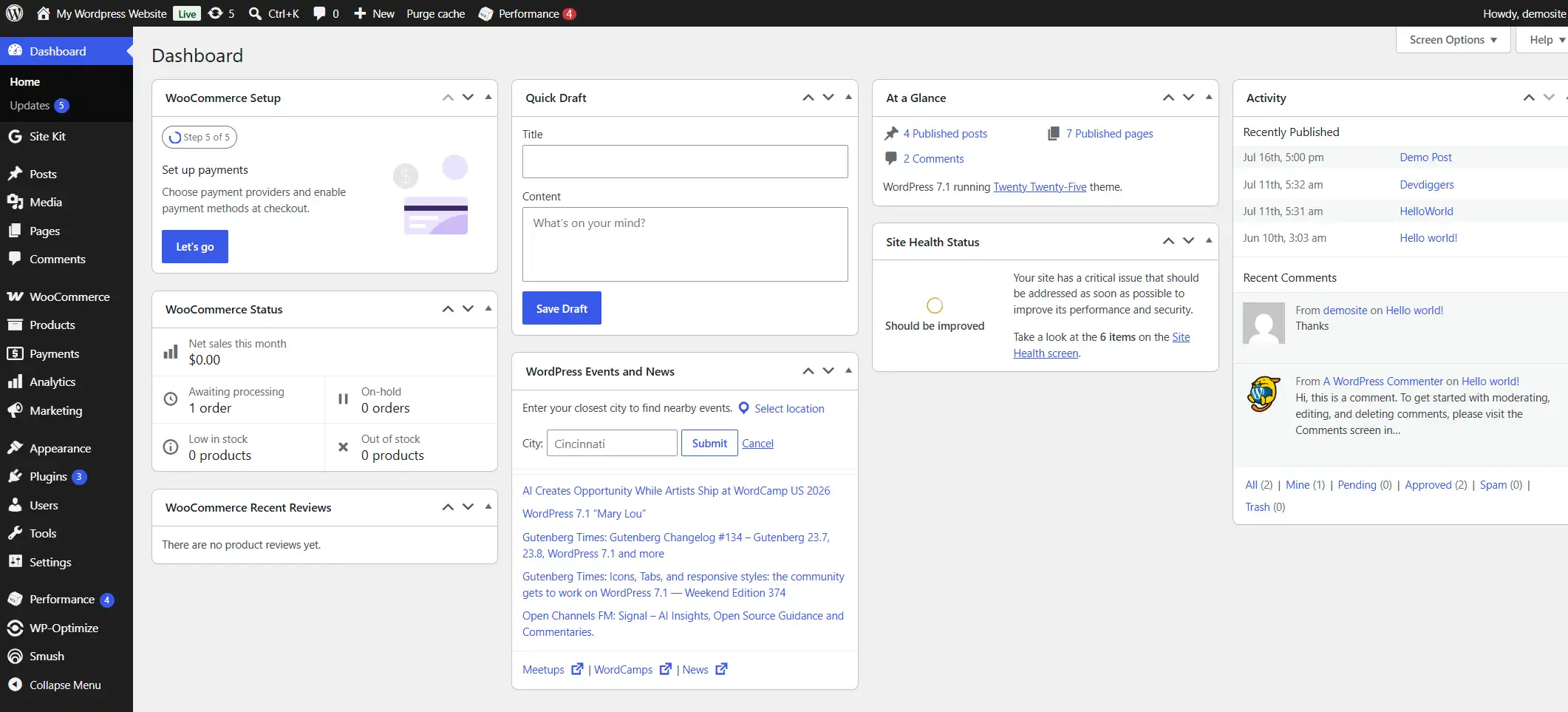
- A basic comfort level with PHP and CSS (copy-paste works fine here)
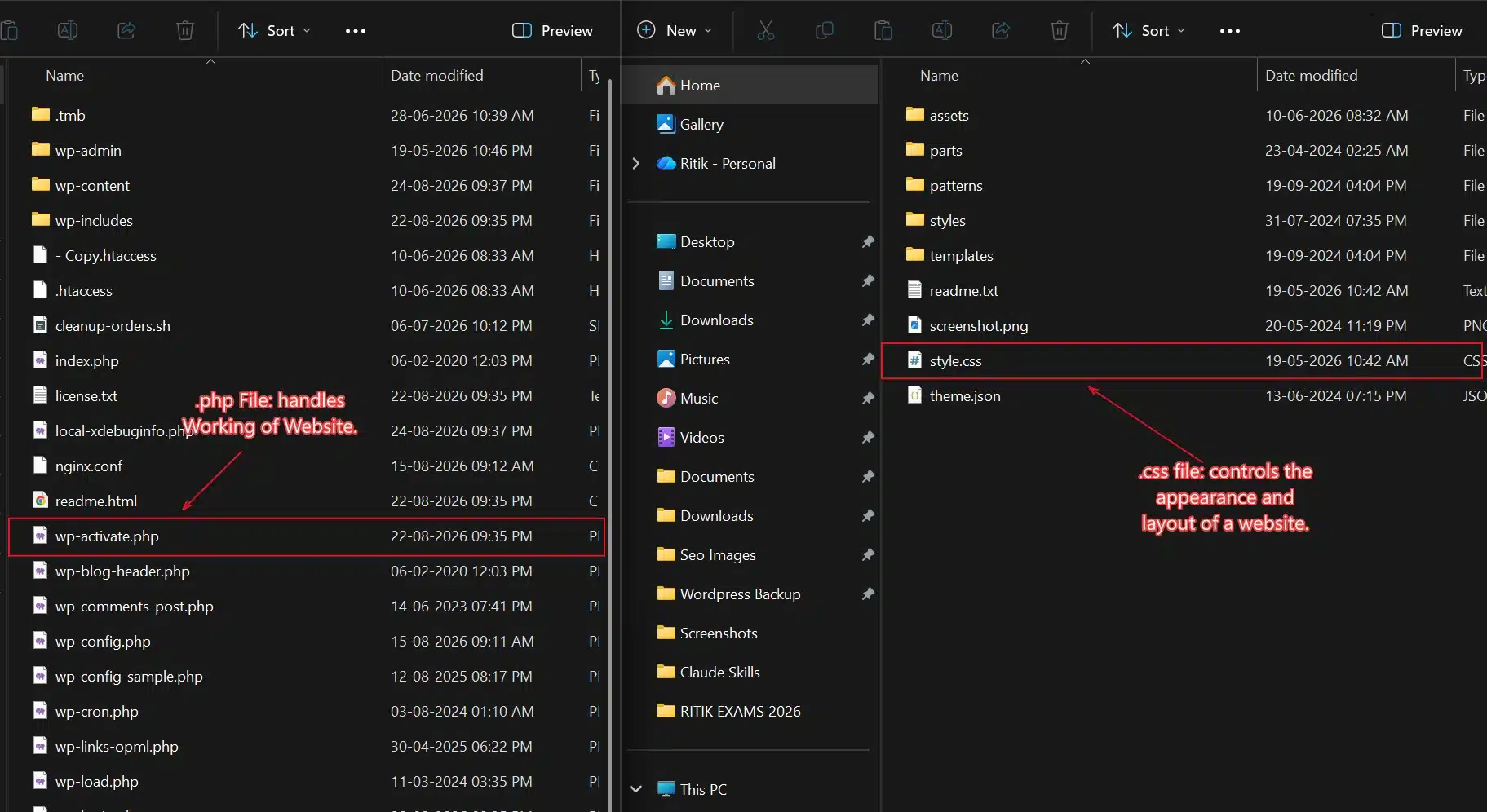
- FTP access, a file manager, or a code snippet plugin
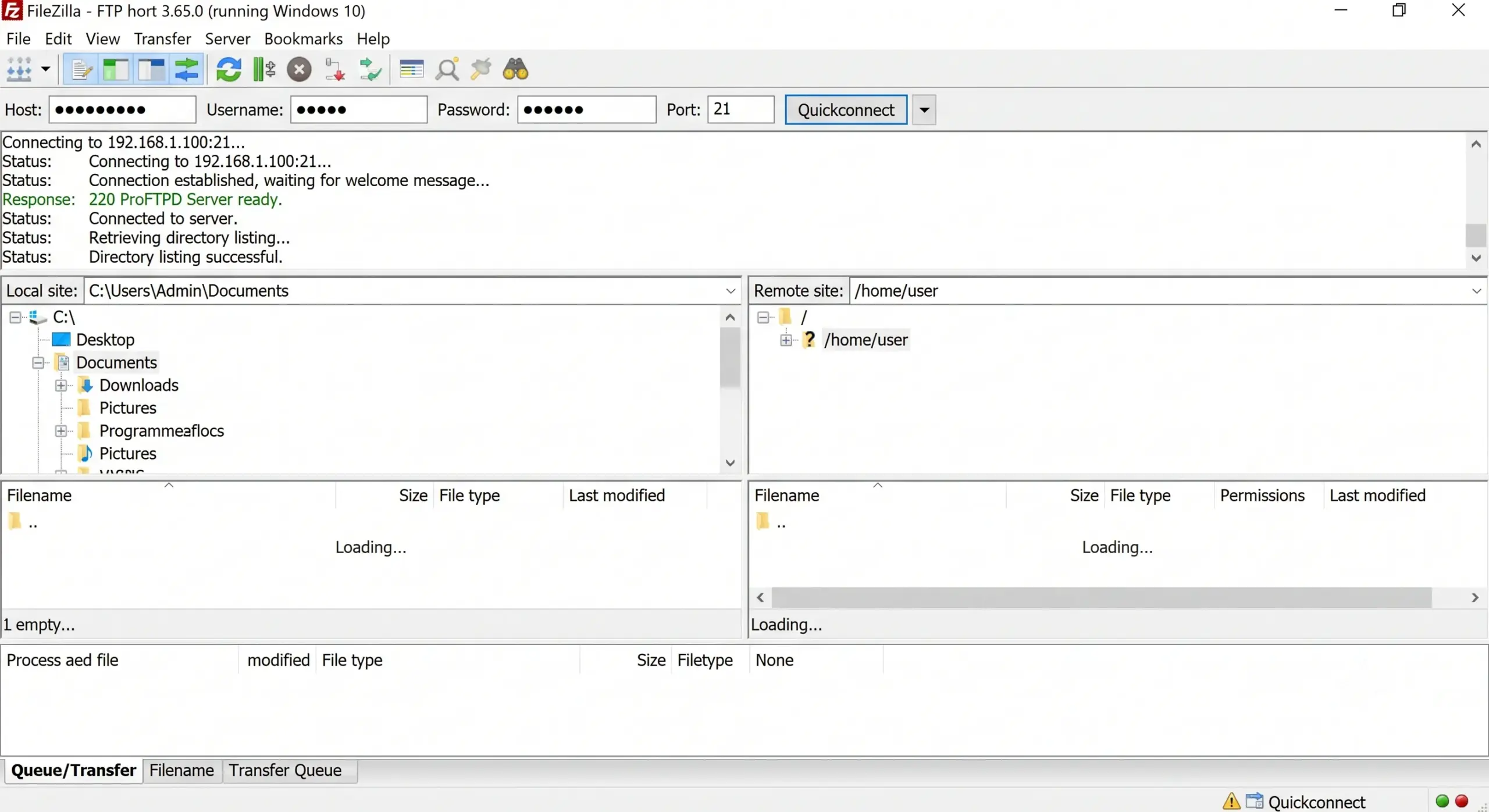
- A child theme, so your changes survive the next theme update
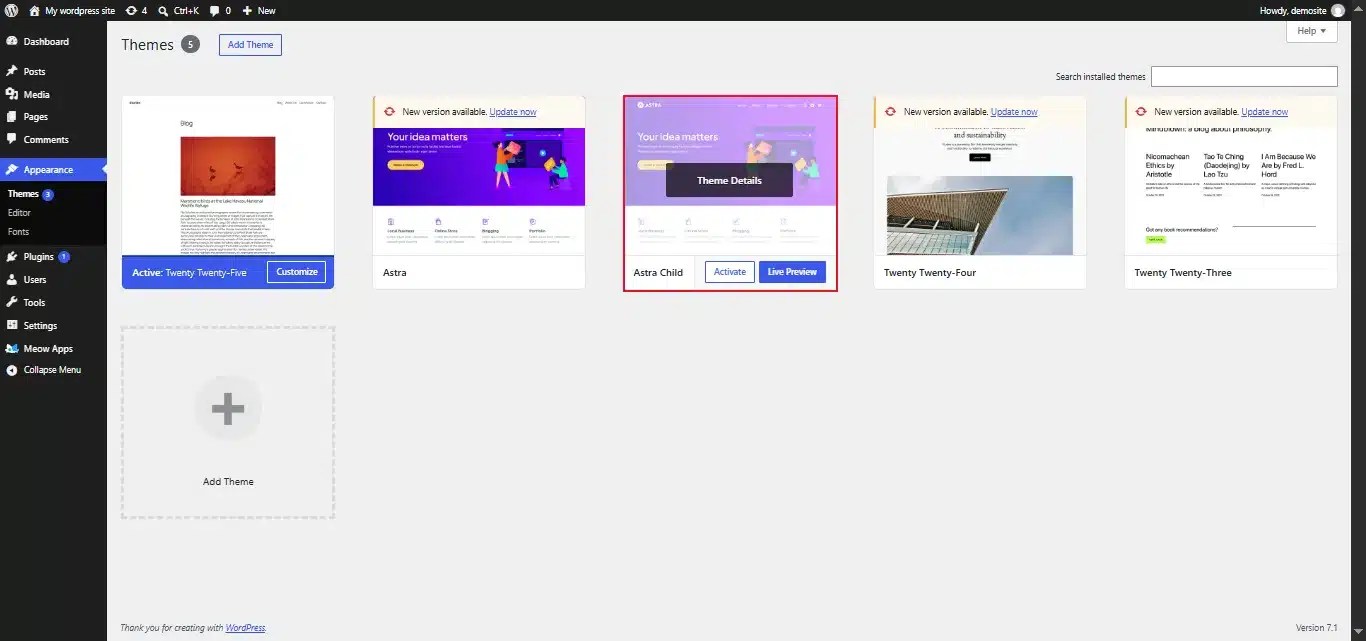
Skip the child theme and a parent theme update will wipe your button clean. Not ideal.
2. Choose Where to Add Your Code
You have two options, and both work the same way:
- Child theme’s
functions.php: Go to Appearance → Theme File Editor →functions.phpConfirm your child theme is selected in the dropdown on the right, then paste your code at the bottom.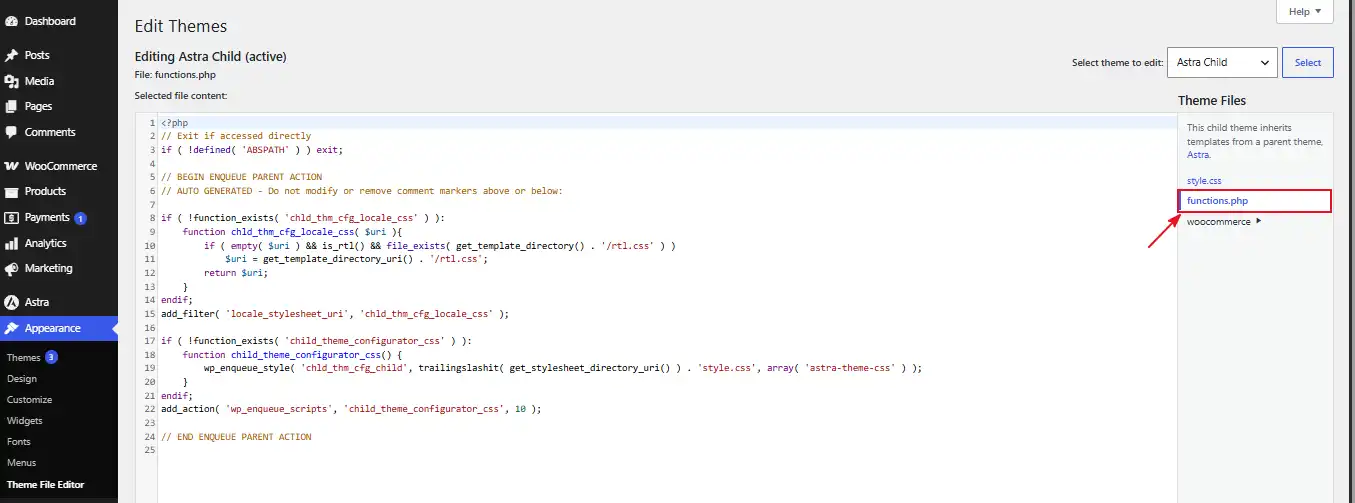
- A code snippet plugin: Install Code Snippets from the plugin repository, create a new snippet, and paste your code there instead. This is the safer route if you’re not comfortable editing theme files directly.
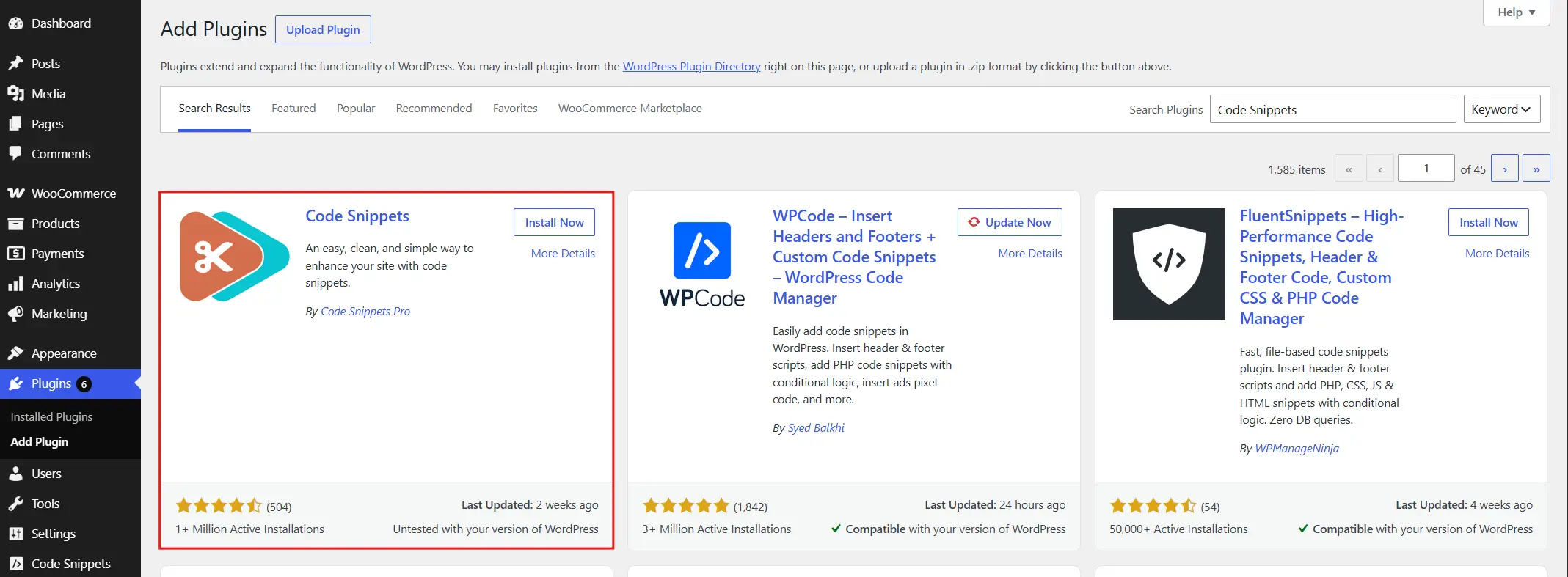
Either way, the code itself doesn’t change.
3. Add the Button Code
Here’s a button placed right before “Proceed to Checkout,” using the hook most guides skip:
add_action( 'woocommerce_proceed_to_checkout', 'devdiggers_custom_cart_button', 5 );

function devdiggers_custom_cart_button() {
    $button_url = esc_url( home_url( '/special-offer' ) );

    echo '<a href="' . $button_url . '" class="button devdiggers-cart-button">';
    echo 'Claim Your Discount';
    echo '</a>';
}
What each part does:
add_action: hooks your function towoocommerce_proceed_to_checkout. The5sets the priority. Lower numbers run first, so your button appears above the checkout button instead of below it.esc_url: makes the link so WordPress doesn’t flag it as unsafe output. Always wrap URLs in this.- The
<a>tag carries the WooCommercebuttonclass, so it automatically picks up your theme’s button styling before you add anything custom.
Want it under the totals box instead? Swap the hook:
add_action( 'woocommerce_after_cart_totals', 'devdiggers_custom_cart_button' );
Same function, different hook, different spot on the page. That’s the whole trick.
Styling the Button with CSS
The WooCommerce button class gives you a decent starting look for free. If you want it to stand out more, add this to your child theme’s style.css:
.devdiggers-cart-button {
    background-color: #d63384;
    color: #ffffff;
    padding: 12px 24px;
    border-radius: 6px;
    text-decoration: none;
    display: inline-block;
    margin-left: 10px;
    transition: background-color 0.2s ease;
}

.devdiggers-cart-button:hover {
    background-color: #a02463;
}
Keep the color close to something in your existing palette. A button that clashes with the rest of the page reads as spam, not as a helpful encourage.
Advanced: AJAX Buttons and Conditional Display
Two upgrades worth knowing once the basic button works.
Skip the page reload: A link tag sends the shopper to a new URL. Maybe the button should apply a coupon or refresh a total right there on the cart page, no reload. Hook into JavaScript instead:
add_action( 'wp_footer', 'devdiggers_ajax_button_script' );

function devdiggers_ajax_button_script() {
    if ( ! is_cart() ) return;
    ?>
    <script>
    document.addEventListener('click', function(e) {
        if (e.target.classList.contains('devdiggers-cart-button')) {
            e.preventDefault();
            alert('Add your AJAX request here.');
        }
    });
    </script>
    <?php
}
Replace the alert() with a fetch() call to your own AJAX handler once you know what the button should do.
Show it only sometimes: Maybe the button should appear only past a spending threshold:
function devdiggers_conditional_button() {
    if ( WC()->cart->total < 50 ) return;
    echo '<a href="' . esc_url( home_url( '/vip-offer' ) ) . '" class="button devdiggers-cart-button">See VIP Offer</a>';
}
add_action( 'woocommerce_after_cart_totals', 'devdiggers_conditional_button' );
Simple idea. Saves you from showing an offer to someone who doesn’t qualify for it yet.
Troubleshooting Common Issues
Ran the code and something’s off? These cover most of what goes wrong.
- Button doesn’t show up at all: Nine times out of ten, this is a caching plugin serving an old version of the page. Clear the cache and reload. If that doesn’t fix it, double-check you selected the child theme, not the parent, in the Theme File Editor dropdown.
- Button shows up twice: Usually means the function got hooked in two places, once in your snippet and once in leftover code from an earlier attempt. Search
functions.phpfor duplicateadd_actioncalls using the same hook name. - Layout looks broken. A theme’s existing CSS is fighting your custom class. Open browser dev tools, click the button, and check which style rule is winning. Increasing CSS specificity, or adding
!importantas a last resort, usually fixes it. - Button ignores your styling: Confirm the class name in your PHP matches the class name in your CSS exactly. A typo here is the most common cause by far.
- Button breaks after a WooCommerce update: Rare, but it happens when a major release renames a hook. Check the WooCommerce hooks reference after any big update if a button that worked yesterday suddenly stops firing.
Conclusion
Adding a custom button to the WooCommerce cart page comes down to one decision and one function. Pick the hook that puts the button where you want it. Then write ten lines of PHP to output it.
Start with woocommerce_proceed_to_checkout if you want the button where shoppers are already looking. Move to woocommerce_after_cart_totals if it’s more of a side offer than a call to action. Either way, test it on a staging site first, on desktop and mobile both, before pushing it live.
Running loyalty rewards or store credit alongside this kind of customization? DevDiggers’ WooCommerce rewards plugin pairs well with a cart page CTA that encourage shoppers toward redeeming points before checkout.
Frequently Asked Questions (FAQs)
Q1. How do I add a custom button to my WooCommerce cart page?
Hook a PHP function into one of the cart action hooks. woocommerce_proceed_to_checkout and woocommerce_after_cart_totals are the two most common. Have that function output your button’s HTML.
Q2. Where should I paste the custom button code?
Into your child theme’s functions.php, or into a snippet inside the Code Snippets plugin. Never paste it into the parent theme’s files, since theme updates will erase it.
Q3. Which hook puts the button next to “Proceed to Checkout”?
Use woocommerce_proceed_to_checkout. It’s the hook most guides skip, but it’s the one that places your button exactly where shoppers are already looking before they buy.
Q4. Can I make the button apply a coupon instead of linking somewhere?
Yes. Swap the link-based function for one that runs WC()->cart->apply_coupon() on click. Or use the AJAX version in this guide to apply it without a page reload.
Q5. Why isn’t my custom button showing up on the cart page?
Check three things in order: a caching plugin serving an old page, the wrong theme selected in the Theme File Editor, and a typo in the hook name. Those three cover almost every case.
Q6. Can I show the button only under certain conditions?
Yes. Wrap your button function in an if statement checkingWC()->cart->total, a specific product ID, or the cart item count. Return early when the condition isn’t met.