Does WooCommerce have a POS System? No, WooCommerce does not have a POS system built into its core. The plugin is built for online checkout, and selling in person needs a separate tool that connects to your store. That tool exists- several of them do- and picking the right one matters more than people expect.
If you searched this because a customer is standing in front of you right now with no way to complete their purchase, you’re not alone. Plenty of store owners build a WooCommerce site first, then realize the counter at their pop-up shop or physical store has nothing to talk to it.
Here’s what you actually need to know before you add anything to your store.
What WooCommerce Actually Comes with by Default
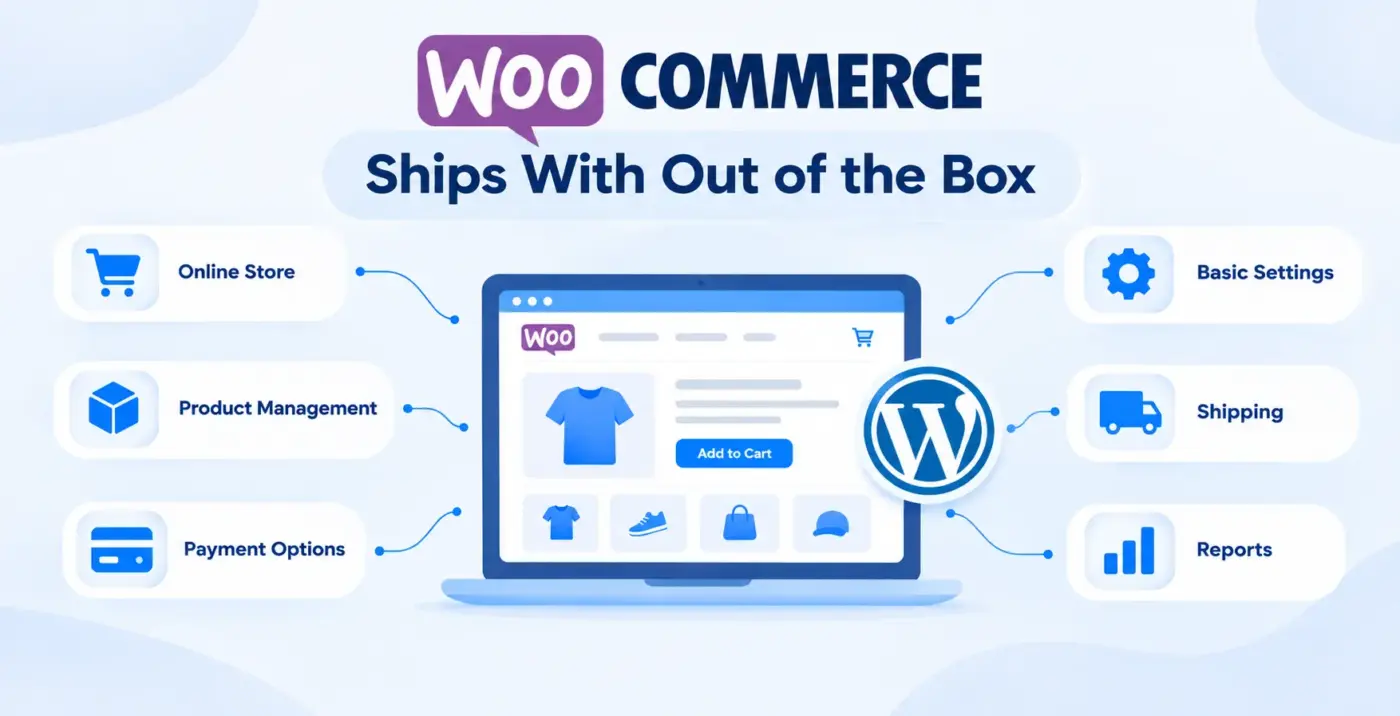
WooCommerce, on its own, gives you a product catalog, a cart, and a checkout page. All of it is built for a customer sitting at a computer or phone, adding items themselves, and paying with their own card.
There’s no register screen. No way to scan a barcode and take cash at a counter. No Checkout counter, no receipt printer support, nothing built for a cashier standing in a physical shop.
WooCommerce keeps its core lean and lets store owners add exactly what they need through plugins. This is the same reason it doesn’t ship with shipping label printing, loyalty points, or advanced tax rules out of the box. You add those when your store needs them, not before.
Direct answer: No built-in POS. But that’s not the end of the story, because the ecosystem around WooCommerce fills this gap in three distinct ways, and most guides blur them together.
Your Three Real Options for In-Person Selling
Most articles on this topic just say “get a plugin” and move on. That’s not wrong, but it skips a decision that actually matters. There are three separate paths here, not one, and they suit different stores.
Option 1: WooCommerce’s own official POS app
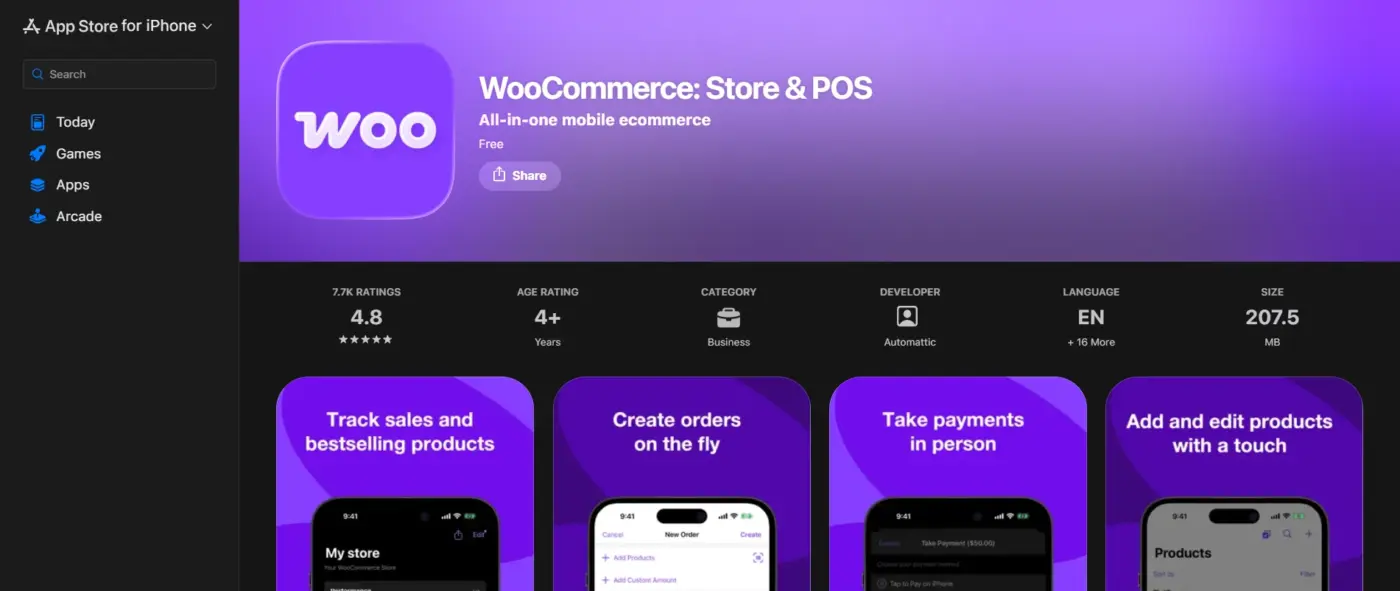
WooCommerce offers its own POS app that runs on tablets. It syncs(Updates together) with your store dashboard and lets you take card payments through a connected reader. Worth knowing before you get excited: it currently only accepts WooPayments or Stripe, it needs an internet connection to work, and offline selling isn’t supported yet. It’s a fine fit if you run occasional pop-ups and already use one of those two payment processors.
Option 2: A WooCommerce-native POS plugin
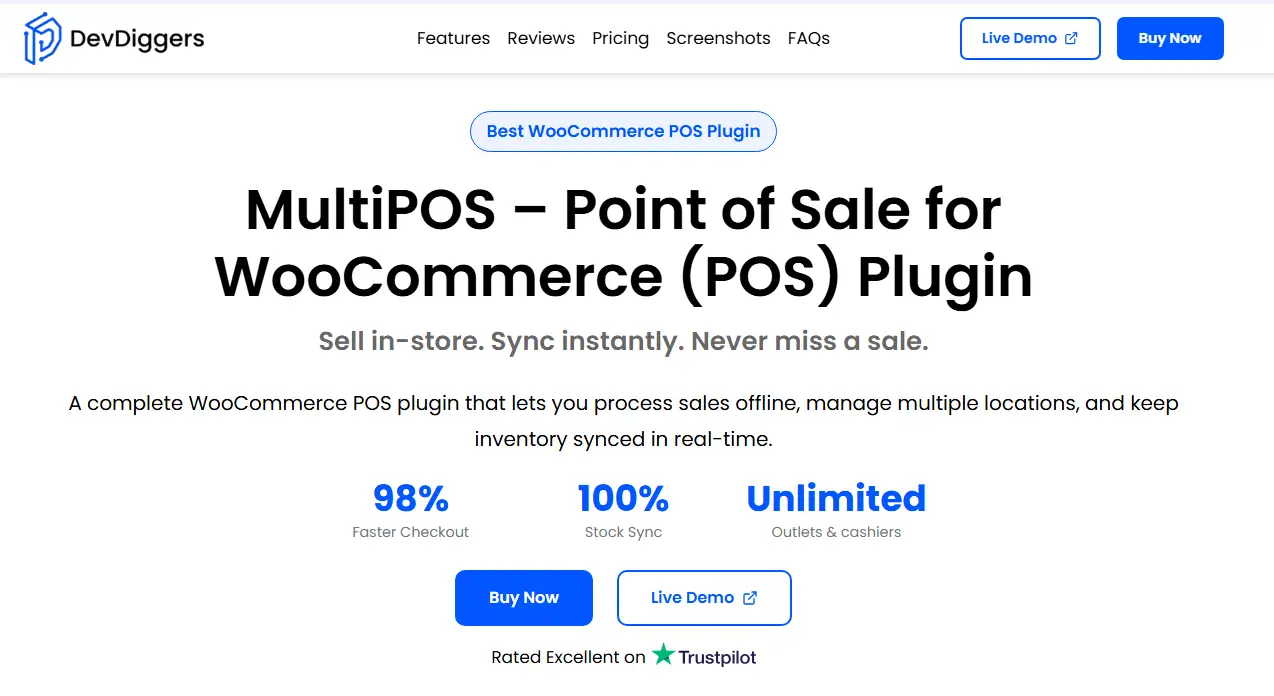
This is a plugin installed directly on your WordPress site. It adds a checkout screen inside your dashboard, pulls your existing product catalog, and pushes every sale back as a normal WooCommerce order. MultiPOS works this way.
It runs in any browser instead of locking you to a specific tablet, and it includes an offline mode so a dropped connection doesn’t stop the line. Store owners running a WooCommerce POS plugin like MultiPOS get unlimited outlets and offline selling without adding a monthly subscription on top of hosting.
Option 3: A third-party POS with a WooCommerce integration
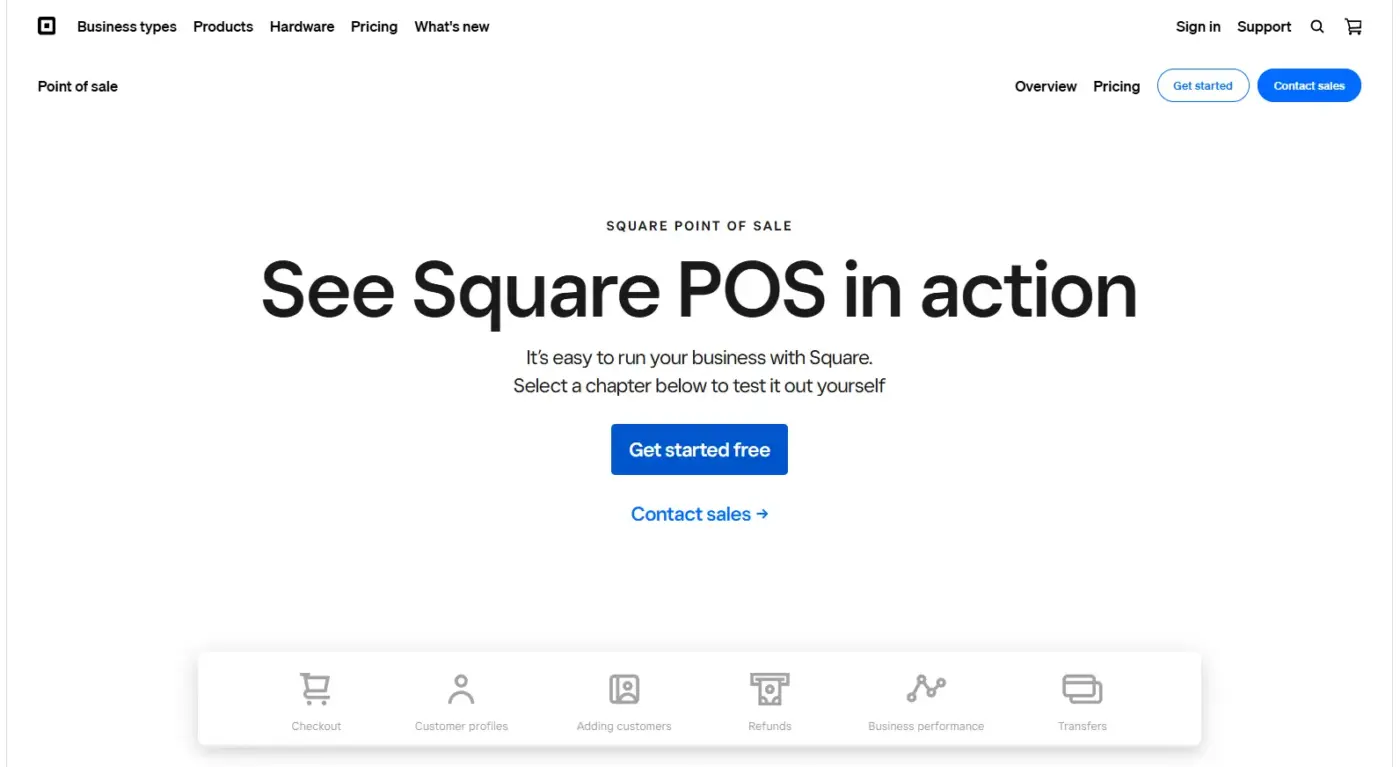
Systems like Square run entirely outside WordPress. You connect them to WooCommerce through an integration, and the two systems sync back and forth. This suits larger retail operations that need deep point-of-sale features and are fine treating WooCommerce as one channel among several, with a subscription and a second vendor relationship to manage.
| Option | Runs Where | Offline Mode | Cost Pattern |
|---|---|---|---|
| Official WooCommerce POS app | Tablet only | Not yet | Free app, needs WooPayments/Stripe |
| WooCommerce POS plugin | Any browser, your WordPress site | Yes (varies by plugin) | One-time or annual license |
| Third-party POS + integration | Separate platform | Varies | Monthly subscription per location |
Most small and mid-sized retailers land on option two. You already own your data, you’re not paying a platform fee on top of what you pay for hosting, and setup usually takes under an hour.
Does WooCommerce Have a POS System? Here’s Why Not
WooCommerce’s whole main approach is to keep the core thin and let the ecosystem handle specialization. A point-of-sale screen has completely different requirements than a website: hardware support for receipt printers and cash drawers, cashier permission systems, offline transaction queuing. Baking all of that into core would add unnecessary extra features for the roughly 90% of stores that never sell in person.
It’s the same reasoning behind why WooCommerce doesn’t ship with a built-in email marketing suite or an affiliate program. Core stays small. You extend it based on what your specific store actually does.
If anything, it’s the reason a small POS plugin can do the job well instead of competing against an unnecessary extra-featured all-in-one that does everything well enough and nothing extremely well.
How a WooCommerce POS Plugin Actually Works
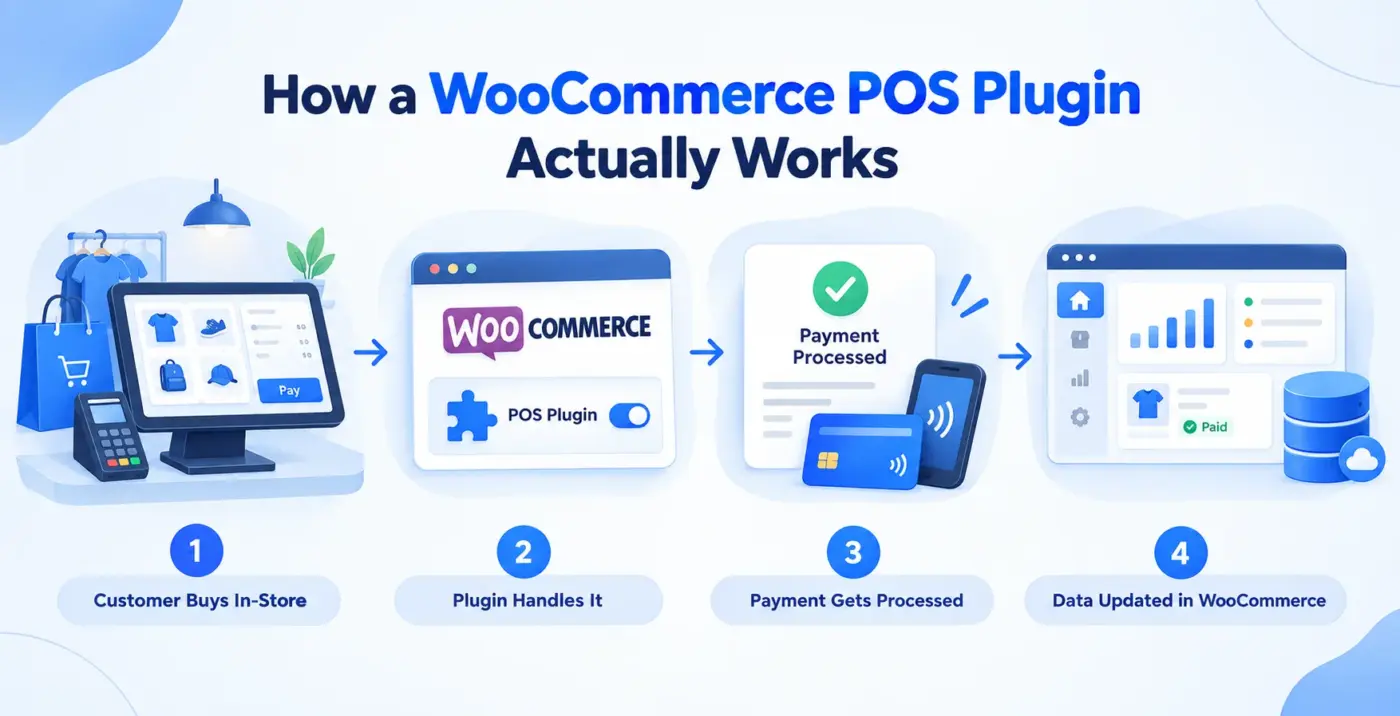
A cashier opens the POS screen, either on a tablet, laptop, or desktop depending on the plugin. They search for a product by name or scan its barcode. The item lands in a cart with the correct price and tax already applied, pulled straight from your store’s existing settings.
The cashier takes payment, cash or card depending on what’s configured, and closes the sale. Three things then happen without anyone touching WooCommerce directly:
- A real WooCommerce order gets created, visible in your normal order list
- Your stock count drops immediately
- The customer record updates if one was captured during checkout
Once online and in-store sales share one stock count, you stop the classic overselling problem: someone buys the last unit at your counter, and your website still shows it available 5 minutes later.
What to Check Before You Pick One
Feature lists for POS plugins get long fast. These are the checks that actually change your day-to-day, not the ones that look good on a comparison chart.
- HPOS compatibility: High-Performance Order Storage is WooCommerce’s modern order management system. It moves orders into dedicated database tables for speed. If a POS plugin isn’t HPOS compatible, you’ll hit order sync bugs on a modern WooCommerce install. This is the single most overlooked check in 2026, and most guides on this exact topic skip it entirely.
- Offline mode, tested honestly: Ask a direct question: can it complete a sale with zero connection, or does it just cache the product list and fail slowly once someone tries to pay? Those are very different things wearing the same label.
- Outlet and cashier structure: If you’re running more than one Checkout counter, or plan to, check whether the plugin lets you assign cashiers to specific outlets and see performance broken out per location. Adding this later is painful.
- Hardware fit: Confirm the plugin actually supports the receipt printer and barcode scanner sitting on your counter, not just “most standard hardware.” Most USB barcode scanners work fine since they act like a keyboard, but always test before your first real sale.
Industry data backs up how common this decision has become. WooCommerce POS extensions now support more than 80,000 physical retail outlets, and roughly 10% of WooCommerce stores with a physical location already run one.
Do You Actually Need One Yet?
Not every store needs a dedicated POS plugin on day one. If you’re doing a handful of pop-ups a year and already process payments through WooPayments or Stripe, the official WooCommerce POS app might genuinely be enough. It’s free, it works, and it doesn’t add a plugin to maintain.
The math changes once you have a permanent counter, a regular event schedule, or staff who need their own logins. At that point, manually reconciling a notebook against your website stock every night stops being a minor annoyance and starts costing real hours every week.
A General guideline that holds up: if you’re selling in person more than once a month, or you have more than one person taking sales, a proper WooCommerce POS plugin pays for itself within the first month just in time saved on stock reconciliation.
Running a pop-up shop specifically? The setup is close to identical to a permanent counter, just with an outlet created for the event instead of your main store. Same goes for restaurants and food service, which need table management on top of standard checkout, covered in our WooCommerce POS for restaurants guide.
Conclusion
WooCommerce doesn’t ship with point-of-sale built in, and it never really tried to. What it does have is a healthy ecosystem that solves the problem three different ways, from a free official app to a full-featured plugin running inside your dashboard.
For most store owners selling in person regularly, a WooCommerce-native plugin is the path of least resistance. Your data stays on your own site, there’s no extra vendor relationship, and setup for something like MultiPOS usually takes under an hour, including your first test sale.
If you’re ready to stop running your counter and your website as two separate businesses, start with MultiPOS on one outlet for free and expand once you know it fits your workflow.
Frequently Asked Questions (FAQs)
Q1. Is there a free WooCommerce POS plugin?
Several options offer a free tier that covers one outlet or a limited feature set, MultiPOS included. Check the current feature split before committing, since free-tier limits change as plugins update.
Q2. Can a WooCommerce POS system work without internet?
It depends entirely on the plugin. Some genuinely queue transactions locally and sync once the connection returns. Others just cache your product list, which means billing still fails once someone tries to pay. Always test this directly instead of trusting the feature list.
Q3. What’s the difference between the official WooCommerce POS app and a POS plugin?
The official app runs on tablets only, needs WooPayments or Stripe, and has no offline mode yet. A plugin like MultiPOS runs in any browser, supports offline sales, and installs directly on your WordPress site rather than requiring a separate app.
Q4. Do I need a developer to set up a WooCommerce POS plugin?
Most plugins include a setup wizard that covers a single-location store without any coding. Multi-outlet setups, custom hardware, or specific workflow requirements are where professional help starts to make sense.
Q5. Will a WooCommerce POS plugin slow down my website?
A well-built one shouldn’t. POS plugins that follow WooCommerce coding standards run their checkout screen as a separate interface from your storefront, so it doesn’t add load to the pages your online customers see.
Q6. Can I use WooCommerce POS for a multi-vendor marketplace?
Some plugins support this, but it’s a genuine gap in many WooCommerce POS tools. If you run a marketplace, confirm the plugin supports per-vendor POS access specifically rather than assuming standard POS features cover it.