
A WordPress portfolio is a site that shows your best work as a project grid, case studies and a contact form. You can build one free with a block theme in about two hours.
We built a full sample portfolio on our WordPress 7.1.3 test site in October 2026, using Twenty Twenty-Four 1.6 and Contact Form 7 6.2.1. Every project in the screenshots is labeled as sample work, and two of the labels we expected had changed in the current version.
Below you get the parts a portfolio needs, how a theme compares with a portfolio plugin, and eight tested build steps. Then come case study structure, SEO and image basics, and the mistakes we hit along the way.
What Should a WordPress Portfolio Include?
A WordPress portfolio needs six parts: a project grid, case studies, galleries, an About page, a contact form and a home page that shows work. Everything else is optional. Visitors decide in seconds, so the grid comes first and the blog comes last, if at all.
A portfolio website WordPress runs with core blocks alone is one of the many websites you can make in WordPress without code. The difference is focus: a designer, writer or developer is selling judgment, and the site has to show it fast.
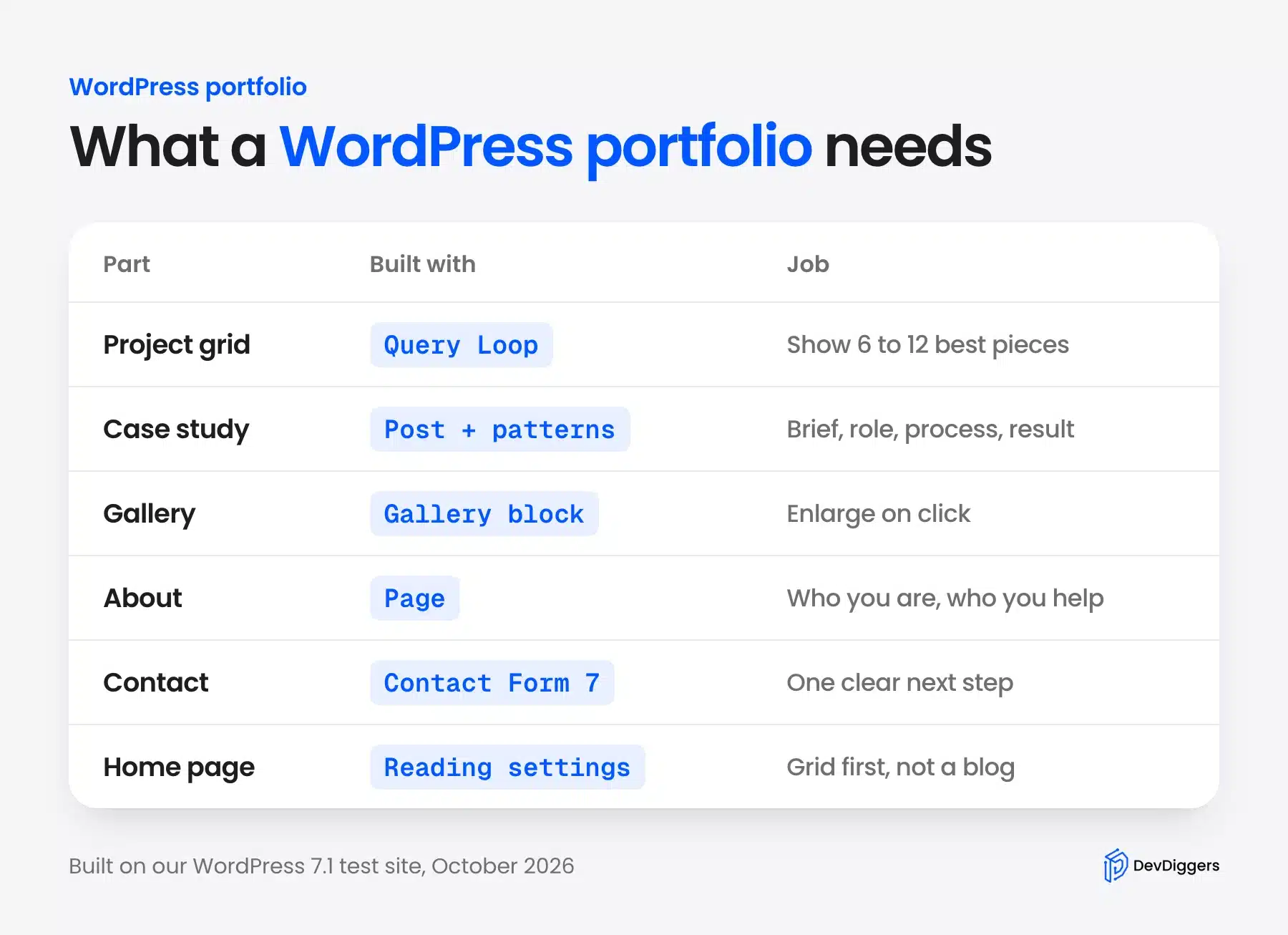
Here is what each part does for a visitor deciding whether to hire you:
- Project grid: Six to twelve pieces you would happily be hired to repeat, each with a cover image and a title.
- Case studies: A short story per project covering the brief, your role, the process and the result.
- Galleries: Several images per project that open large when clicked, so detail is not lost in a thumbnail.
- About page: Who you are, who you help and how you work, written in plain words.
- Contact CTA: A form or button on every case study, so the next step is one click away.
A creative portfolio site rarely needs more than this at launch. Add a blog or a shop later, once the core pages earn visits.
Do You Need a WordPress Portfolio Theme or a Plugin?
You do not need a paid WordPress portfolio theme or a portfolio plugin to start. A free block theme and core blocks cover the grid, galleries and case studies; only the form needs a plugin. Portfolio plugins add a separate project post type, which helps big archives but ties your content to that plugin.
The block theme route keeps every project as a normal post in a Projects category. If you switch themes later, the posts, images and category all stay put. A plugin that registers its own project post type stores your work in a place only that plugin knows how to display.
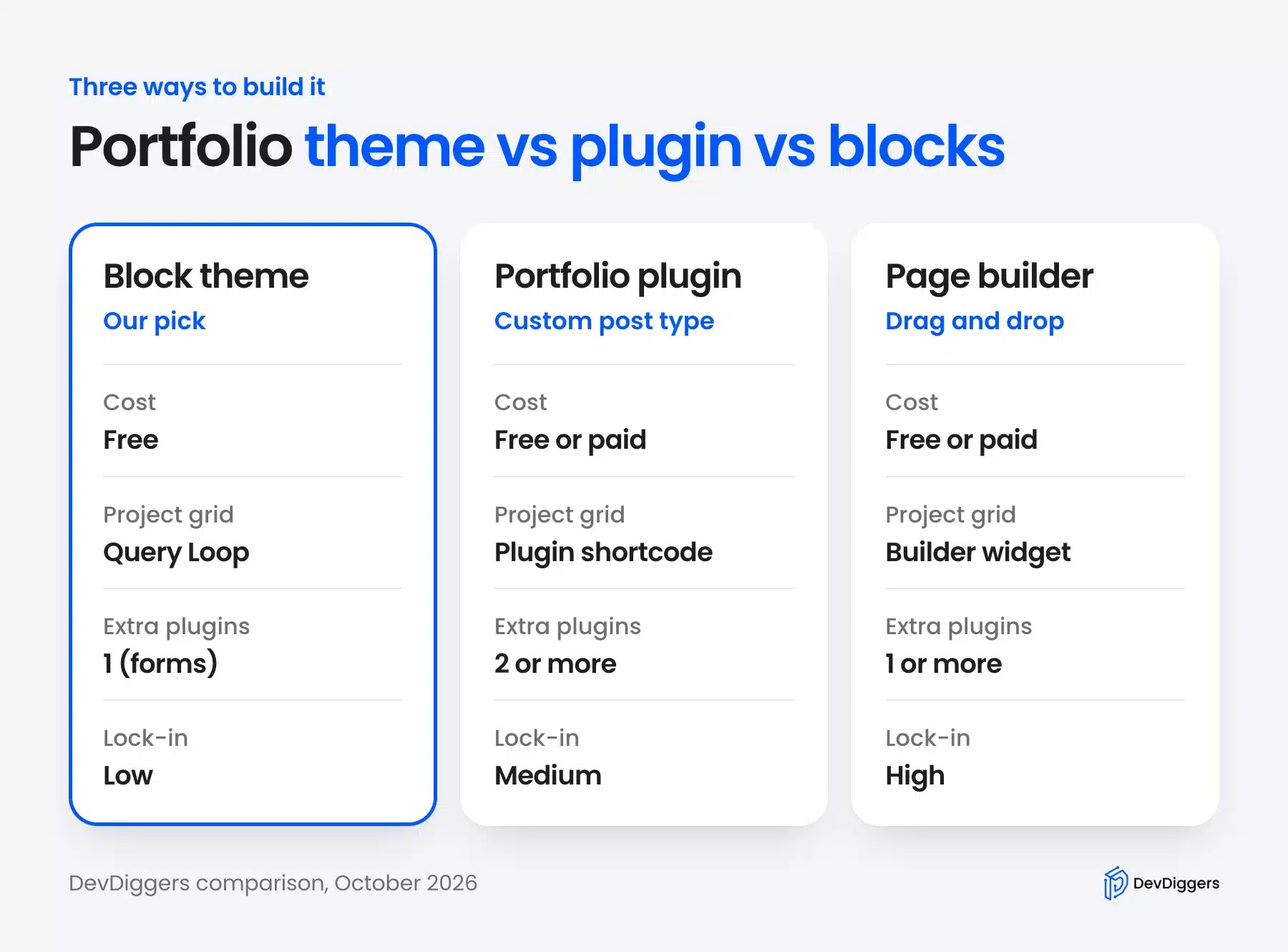
Page builders give drag and drop control, but each one brings its own widgets and markup. AI tools can now draft a first layout too, and our roundup of WordPress AI website builders compares what they produce. For a portfolio with under 50 projects, the block theme route was the lightest setup we tested.
Tip: A project post type is worth it when you have hundreds of pieces and need custom fields like client, year and medium on every one. Below that, a category and a consistent case study layout do the same job.
How to Create a Portfolio on WordPress
Here is how to create a portfolio on WordPress in eight steps. Install a portfolio block theme, create a Projects category, add each project as a post and build a Query Loop grid. Then add galleries, lay out case studies, add a contact form and set the grid as your home page.
You need WordPress installed and an admin login before you start. If it is not running yet, our guide to create a WordPress site from scratch covers hosting and the install.
Step 1: Install a Block Theme Built for Portfolios
Search the theme directory from your dashboard and filter to block themes. We used Twenty Twenty-Four, a free default theme with 500,000+ active installs, updated on August 19, 2026.
- Open the theme screen: Go to Appearance, then Themes, then click Add Theme.
- Filter and search: Click Block Themes and type “portfolio” in the search box.
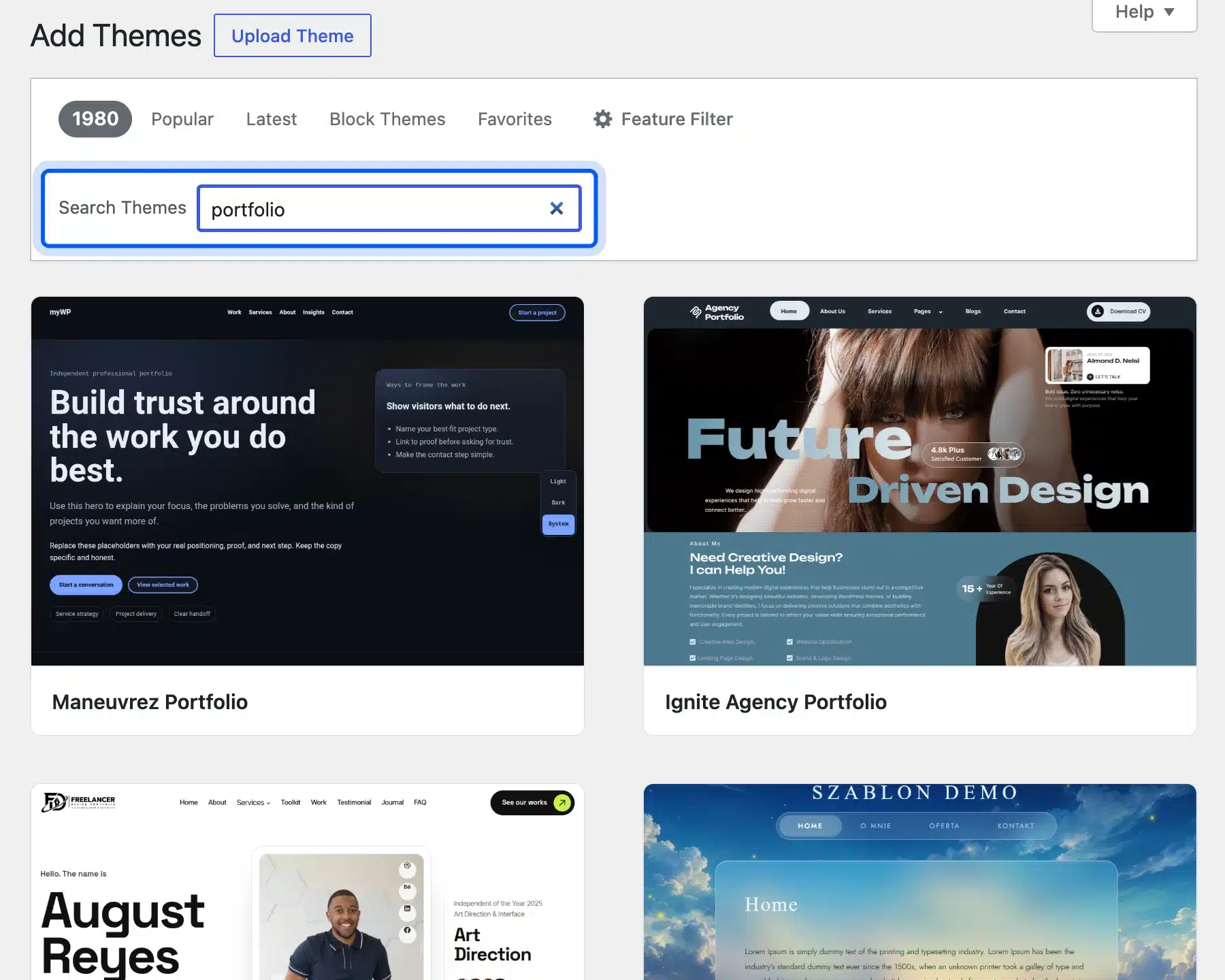
- Install and activate: Hover the theme card, click Install, then Activate.
The search returned portfolio themes such as Maneuvrez Portfolio and Ignite Agency Portfolio. We kept Twenty Twenty-Four because it ships 57 patterns, including a Portfolio home template, Project details and Project layout.
Step 2: Create a Projects Category
A category groups your work posts so the grid can show only those. It also gives you an archive URL like /category/projects/ for free.
- Open categories: Go to Posts, then Categories.
- Add the category: Type “Projects” in the Name field and click Add Category.
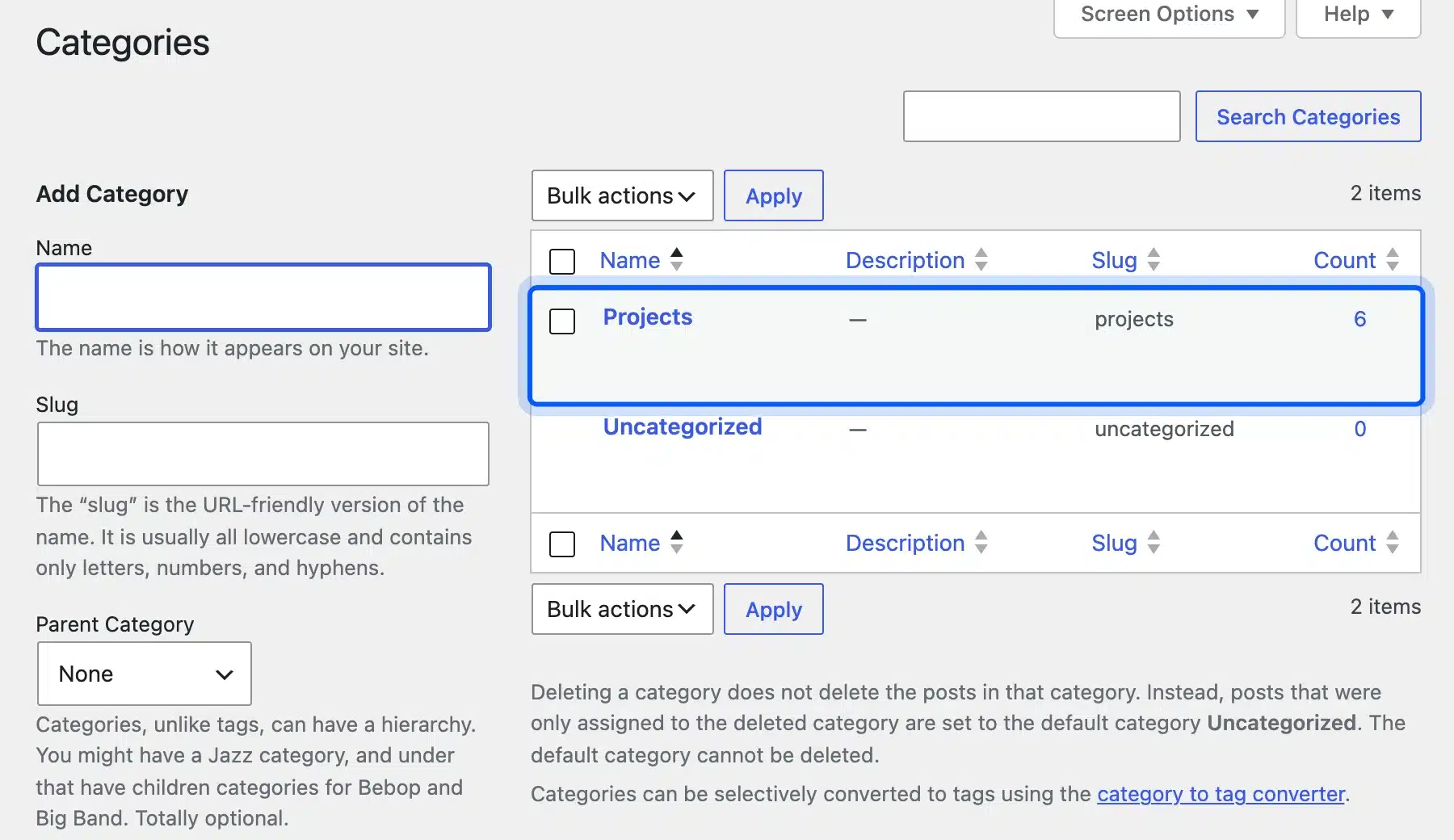
Our test site shows a count of 6 in that row, one for each sample project we added in the next step.
Step 3: Add Each Project as a Post
Each project is a normal post with a cover image and the Projects category ticked. The cover image becomes the thumbnail in the grid, so pick the image that explains the work at a glance.
- Start the post: Go to Posts, then Add Post, and type the project name as the title.
- Set the cover: In the Post sidebar, click the featured image area and pick or upload the cover.
- Tick the category: Open Categories in the same sidebar and tick Projects, then Publish.
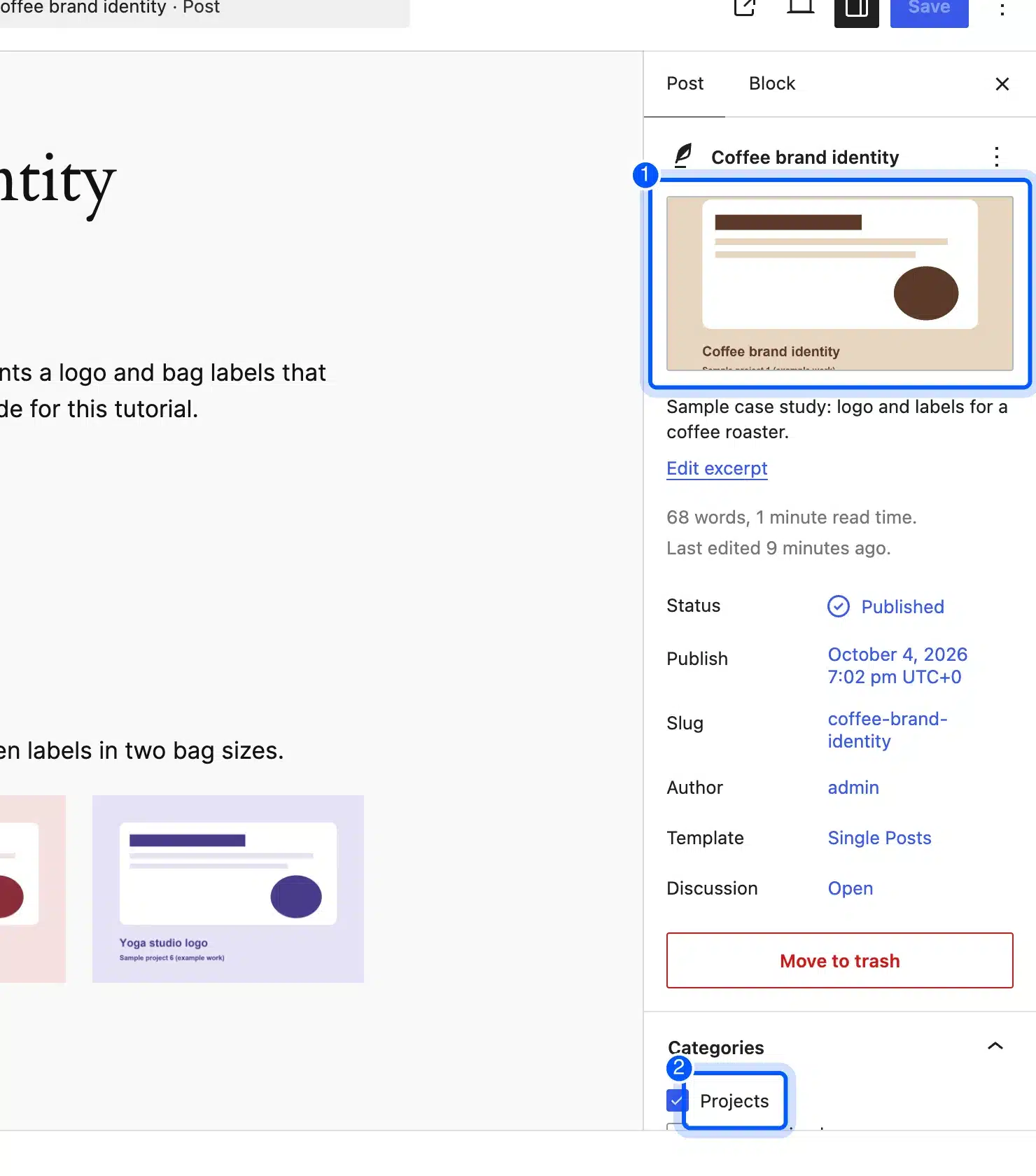
We added six sample projects this way, from a coffee brand identity to a yoga studio logo. Every cover says “Sample project” on it, which is a habit worth copying while you build so test content never looks like a real claim.
Step 4: Build the Project Grid With a Query Loop
The Query Loop block pulls posts onto a page and repeats a layout for each one. Filter it to the Projects category and switch it to a grid.
- Create the page: Go to Pages, then Add Page, and name it “Work”.
- Insert the block: Add a Query Loop block and pick a layout with featured images.
- Filter to projects: In the block settings, set Query Type to Custom, then add Projects under Filters, Categories.
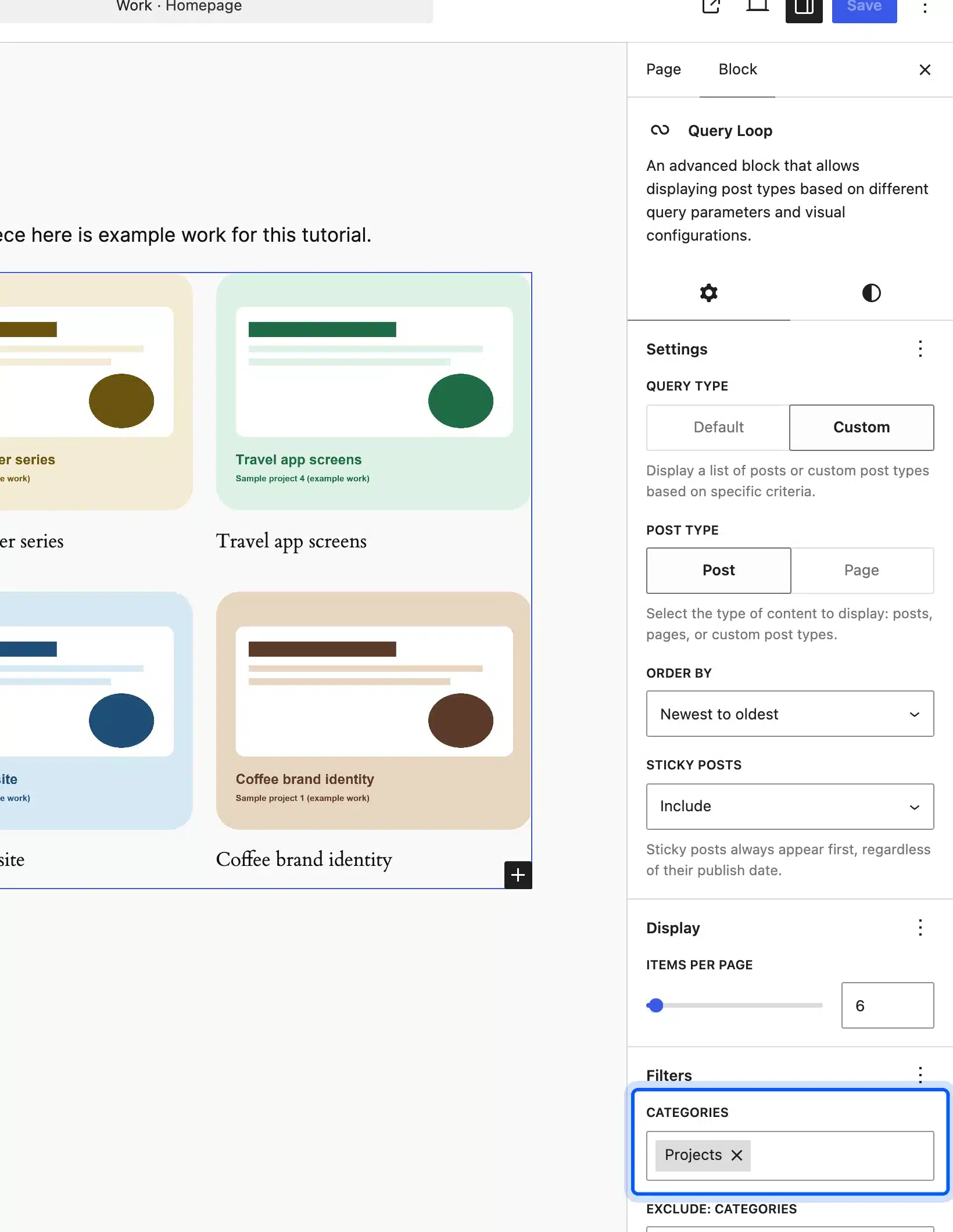
- Set the grid: Pick the grid view in the block toolbar, set 3 columns and 6 items per page, then Publish.
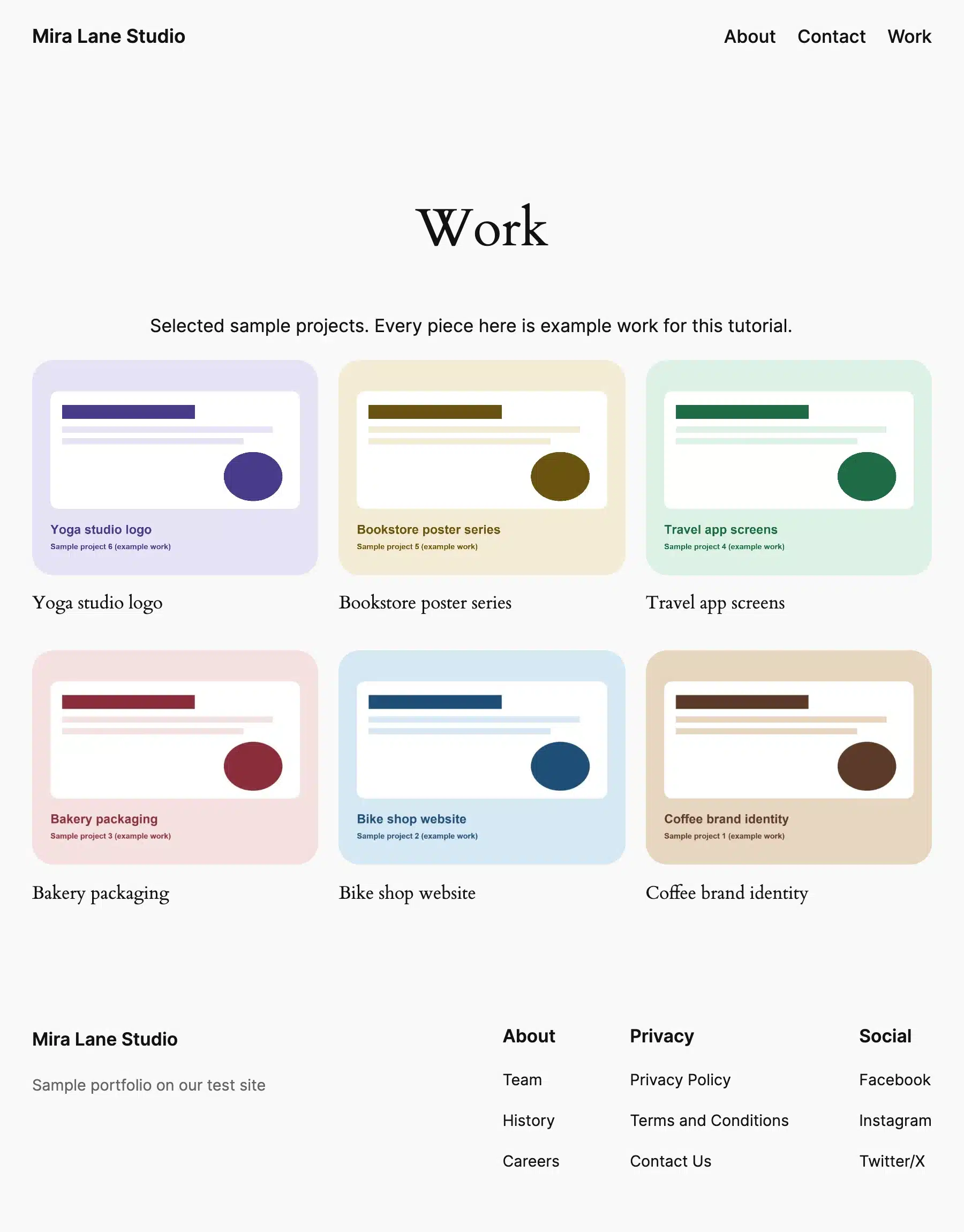
New projects appear in the grid as soon as you publish them in the Projects category. You never edit the Work page again unless you want a new layout.
Step 5: Add a Gallery With Enlarge on Click
A Gallery block shows several images in rows, and core WordPress can open each one in a lightbox. No lightbox plugin is needed.
- Add the gallery: Inside a project post, insert a Gallery block and select three to six images.
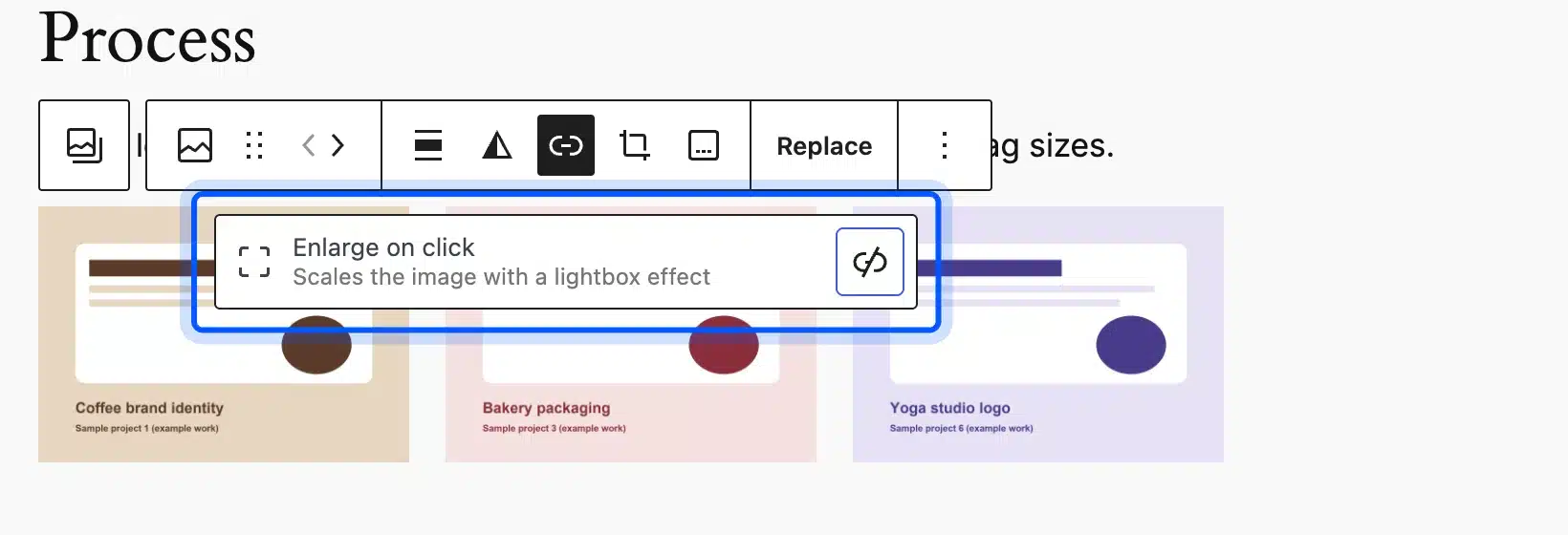
- Turn on the lightbox: Click one image, open the Link button in its toolbar and choose Enlarge on click.
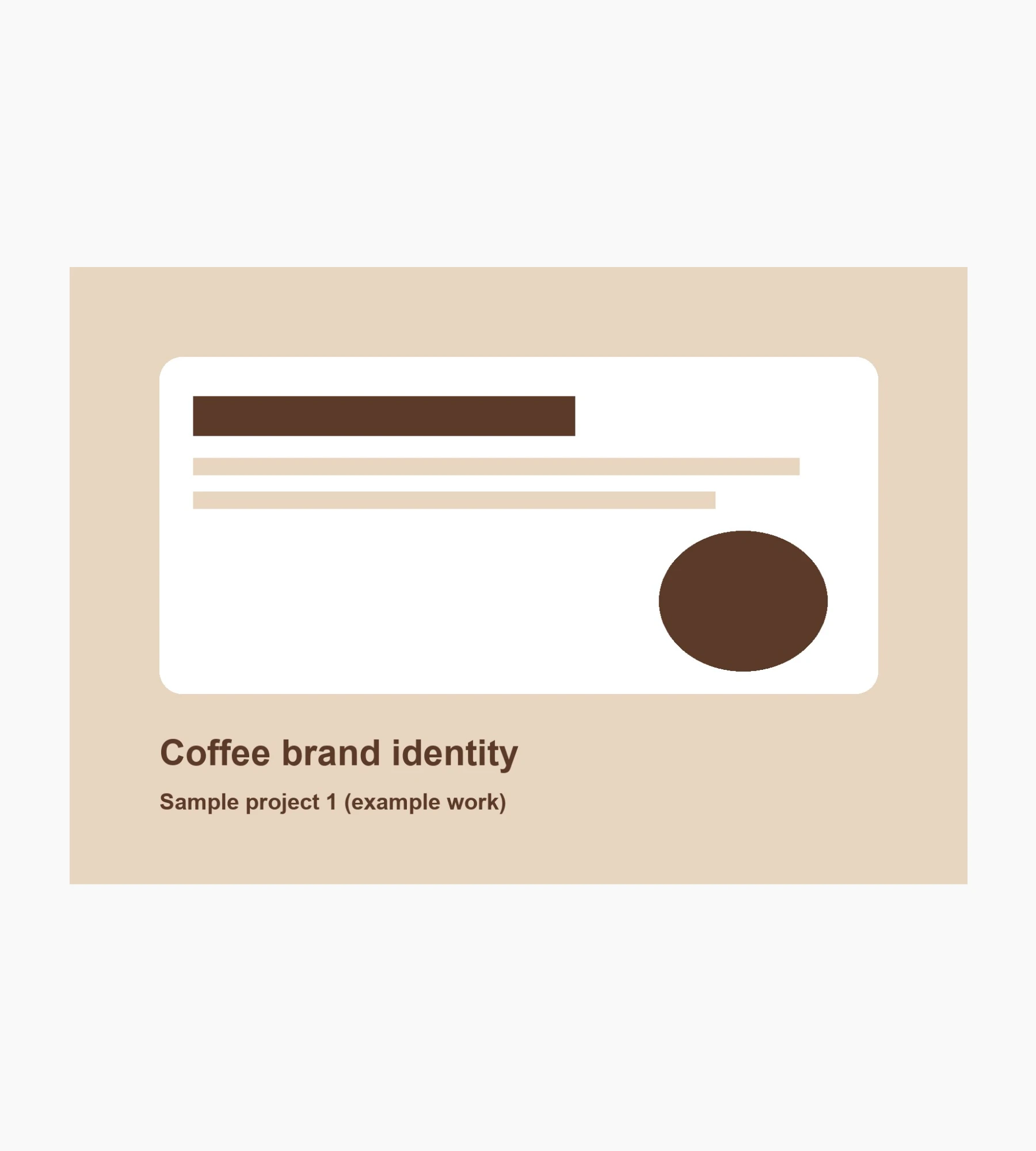
- Check the front end: View the post and click an image. It should open full size over the page.
Older tutorials call this setting “Expand on click”. In WordPress 7.1.3 the menu reads Enlarge on click, with the hint “Scales the image with a lightbox effect”.
Step 6: Lay Out the Case Study With Patterns
Patterns are ready made groups of blocks you drop into a post and then edit. Twenty Twenty-Four includes Project description, Project layout and Project details, which fit a case study well.
- Open the inserter: Click the plus button at the top left and switch to the Patterns tab.
- Search for projects: Type “project” and click the pattern you want to insert.
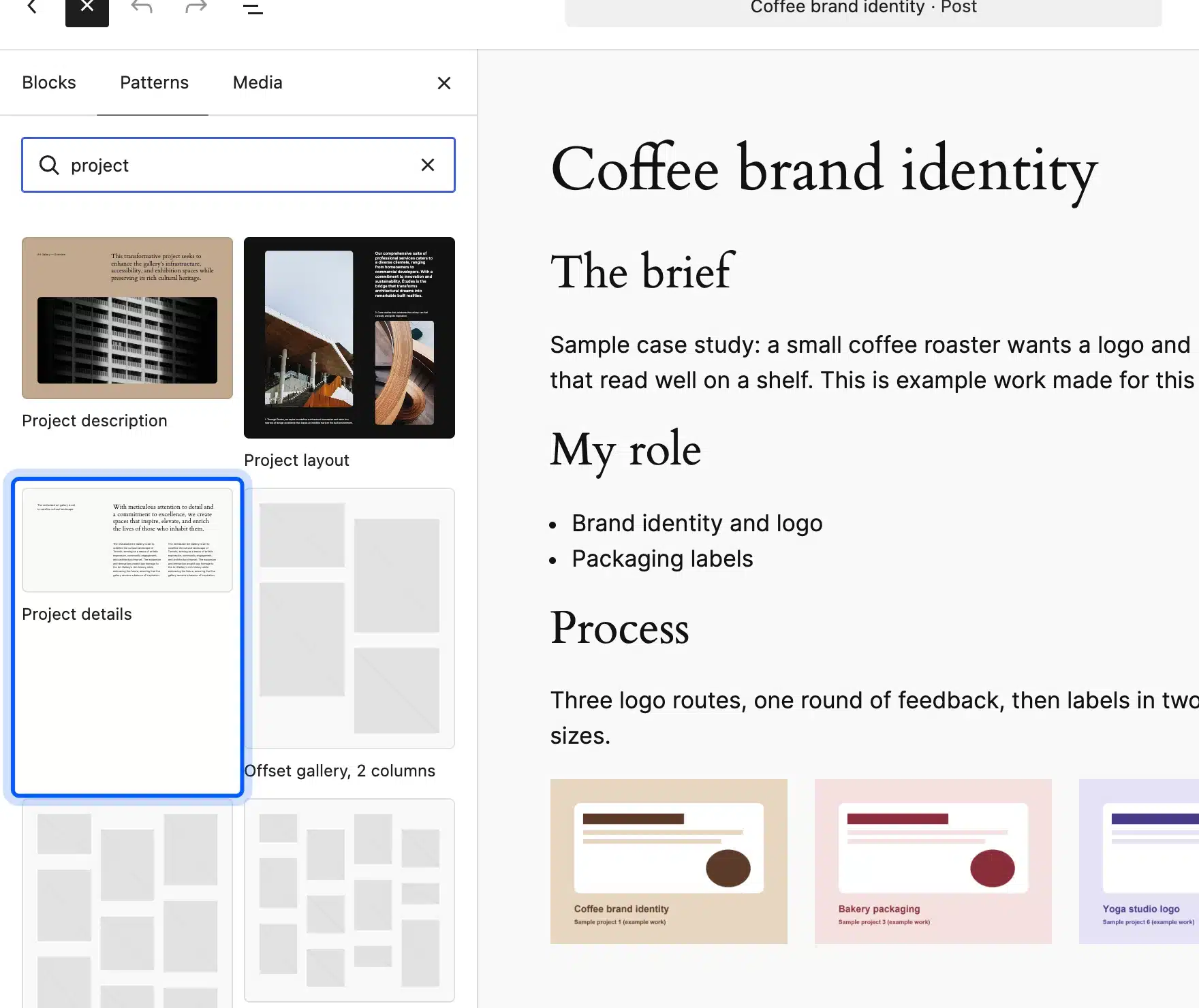
- Fill in the story: Replace the sample text with your brief, role, process and result headings.
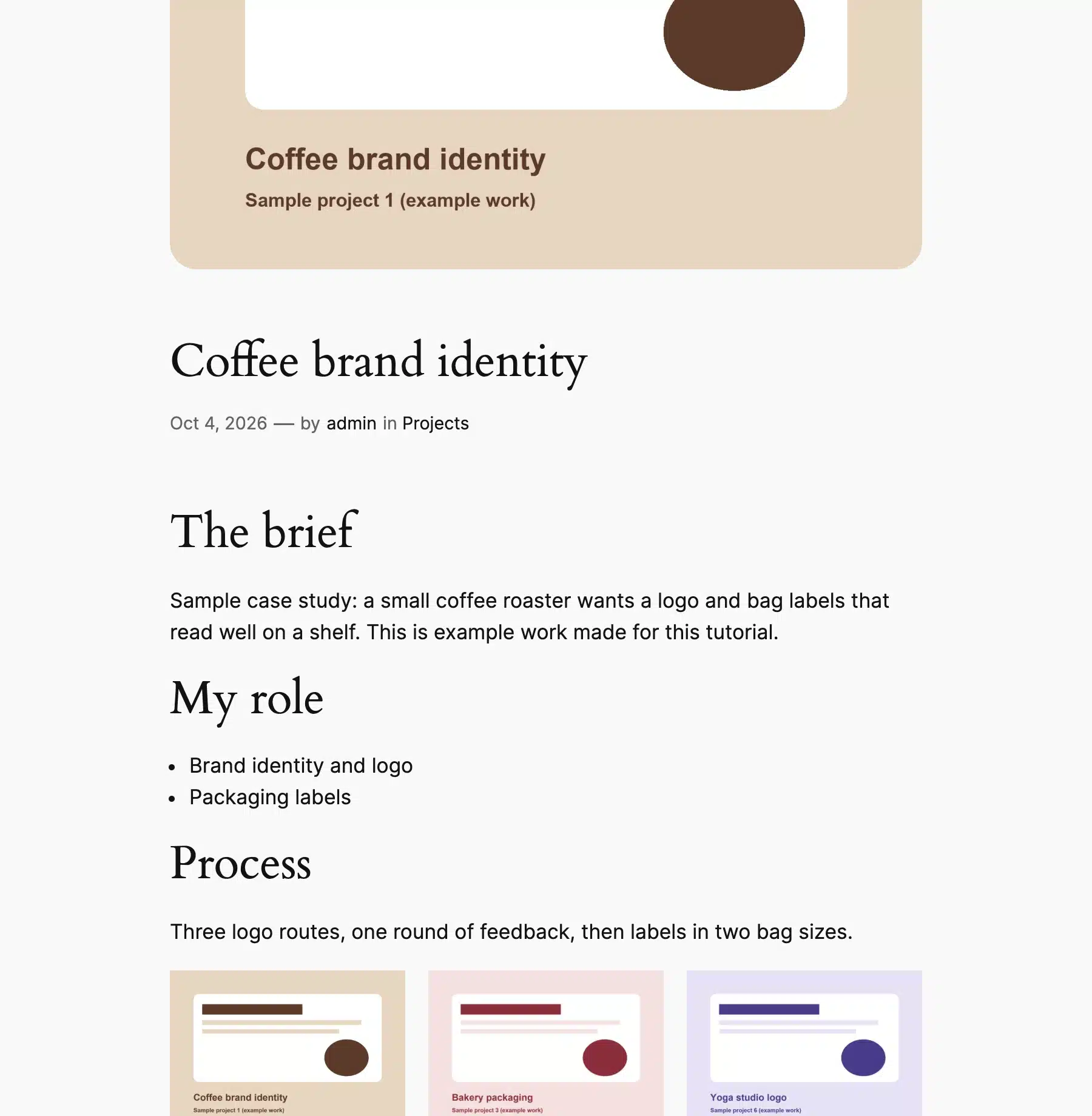
Keep the same headings on every case study. Visitors who read one learn where to look on the next.
Step 7: Add a Contact Form
Core WordPress has no form block, so this is the one plugin the build needs. We used Contact Form 7, which is free and has 10 million+ active installs.
- Install the plugin: Go to Plugins, then Add Plugin, search “Contact Form 7”, then install and activate it.
- Open the default form: Go to Contact, then Contact Forms, and open Contact form 1.
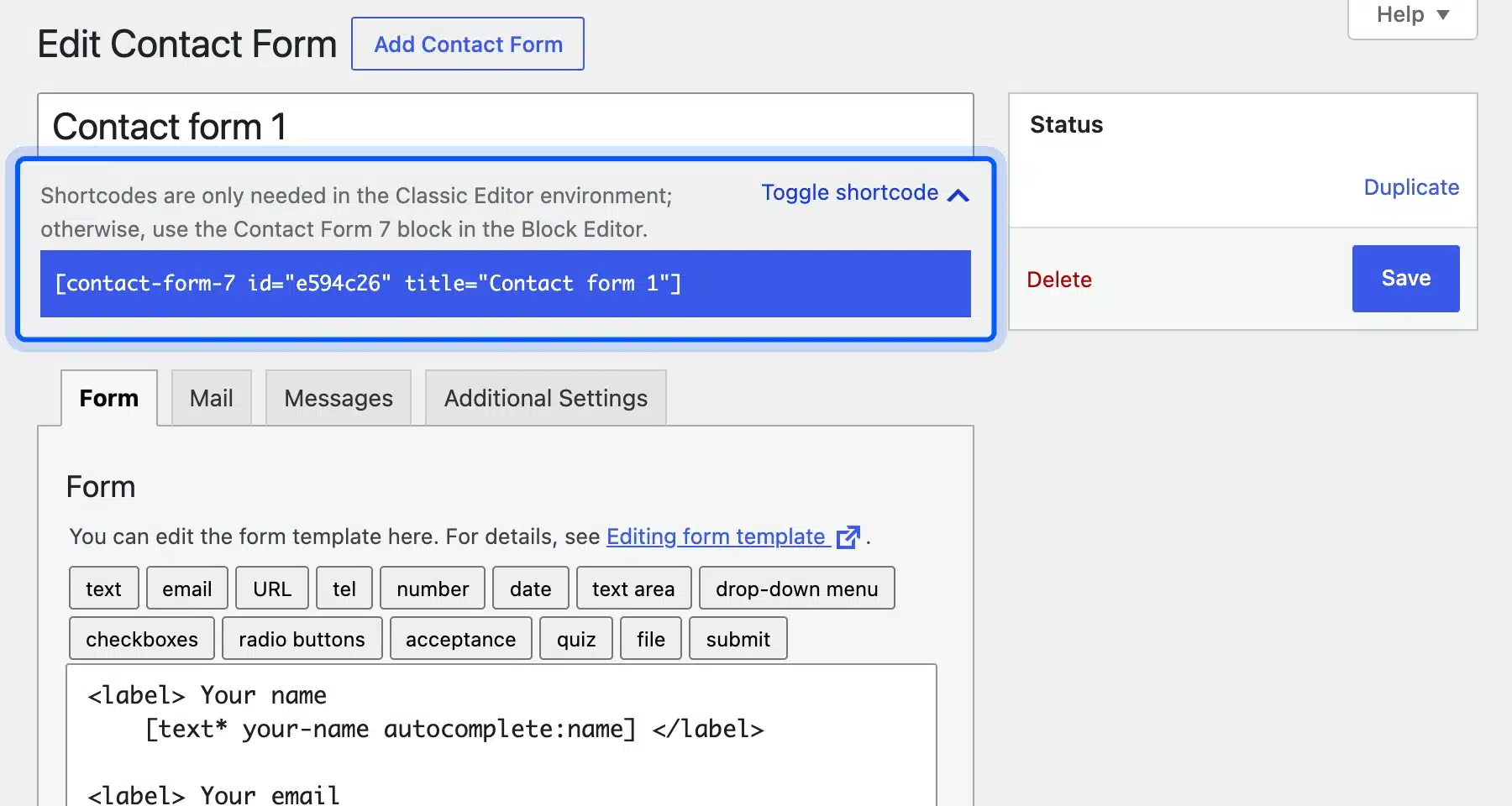
- Add it to a page: Create a Contact page and insert the Contact Form 7 block, or paste the shortcode into a Shortcode block as our test page did.
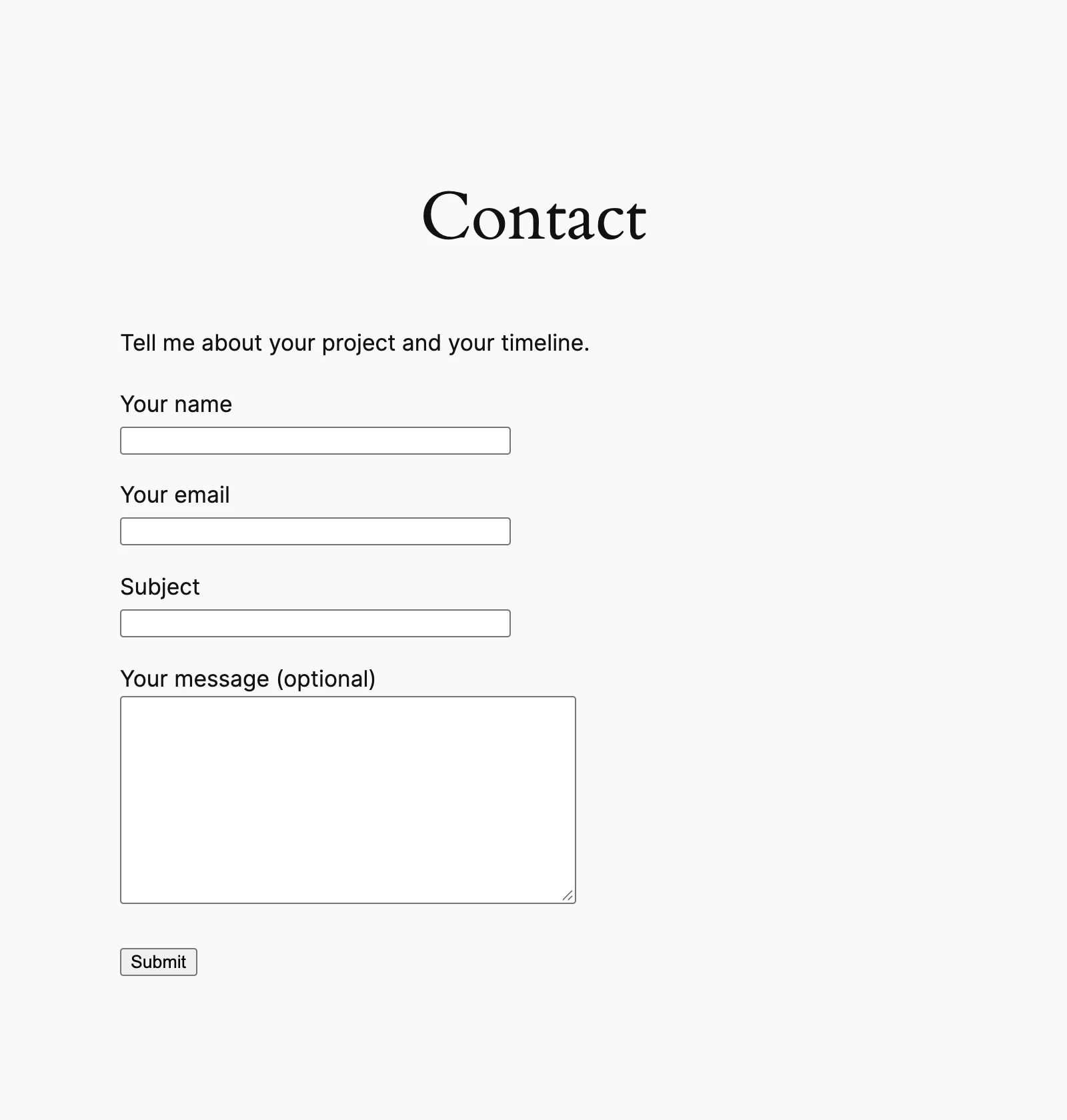
Version 6.2.1 hides the shortcode behind a Toggle shortcode link. The notice under it says shortcodes are only needed in the Classic Editor, so use the block in the block editor.
Step 8: Make the Grid Your Home Page
A portfolio should open on the work itself. A list of blog posts at the root URL hides it. The Reading settings screen sets which page loads at your root URL.
- Open Reading settings: Go to Settings, then Reading.
- Pick the static page: Choose A static page, set Homepage to Work and click Save Changes.
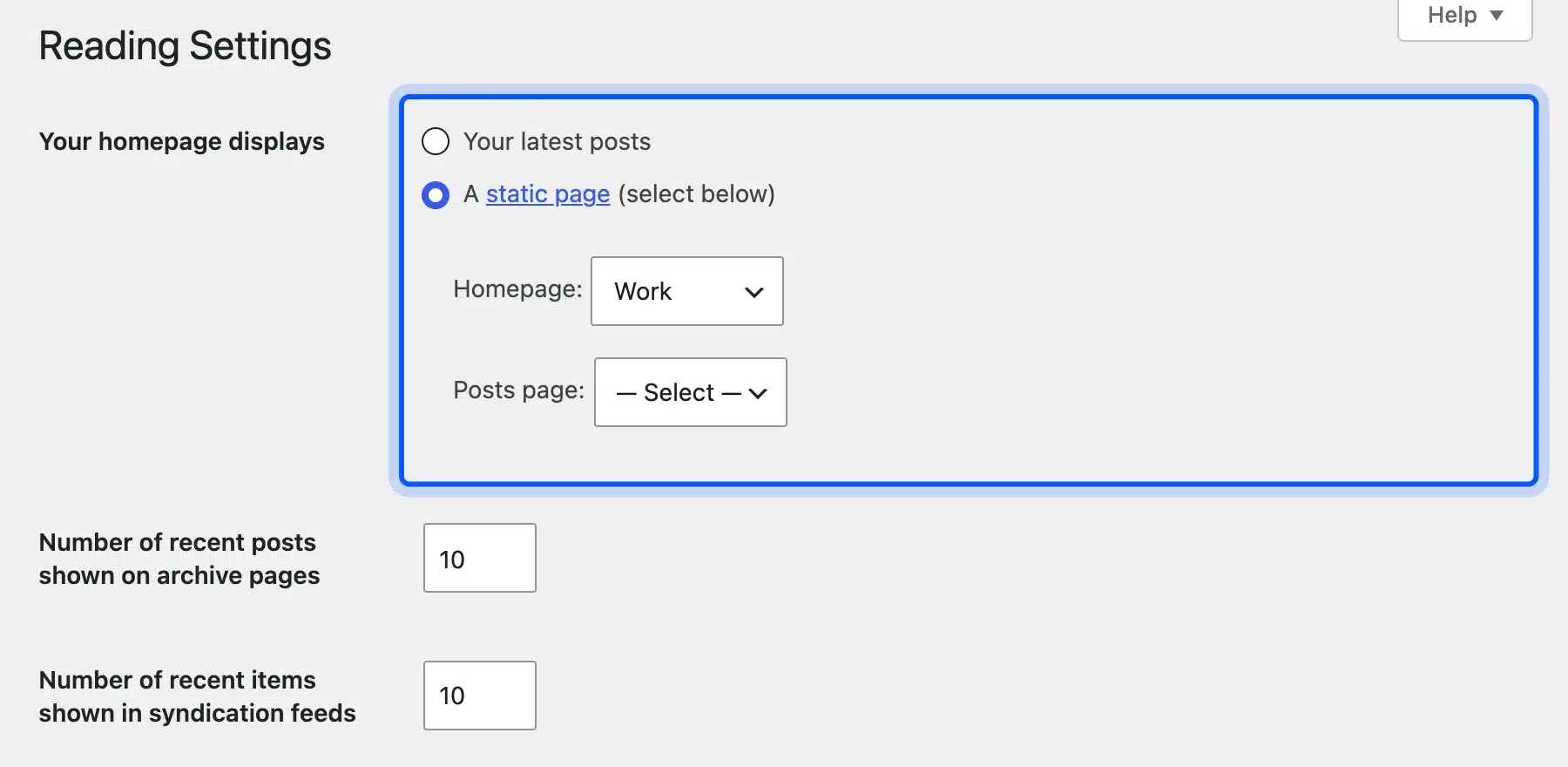
Leave Posts page empty if you have no blog yet. Add About, Work and Contact to the header menu in the Site Editor, and the build is done.
These eight steps take an afternoon for a few projects. Custom fields, a custom project layout or a move off an old builder take longer. Our custom WordPress development team builds that part for you.
How to Structure a Portfolio Case Study
A strong case study structure follows four headings: the brief, your role, the process and the result. Keep each one to a short paragraph or a few bullets, and add images between them. A case study that reads in under two minutes gets read; a ten screen essay gets skimmed.
Use this order on every project page:
- The brief: What the client needed, in one or two sentences, with the constraint that made it hard.
- Your role: What you did yourself, as a short list, so shared projects stay honest.
- The process: Two or three decisions you made and why, with sketches or drafts as images.
- The result: What changed after launch, using a real number only when you have one.
- Contact CTA: A button such as “Start a project” that links to your Contact page.
Our sample case study used exactly this layout, with a three image gallery inside the process section. Some people draft the text with an AI writer first. Our guide to AI integration with WordPress shows ways to bring those tools into the editor.
Worth knowing: A writing portfolio follows the same structure. Swap the gallery for a short excerpt of the piece and a link to where it was published.
Portfolio SEO and Image Optimization Basics
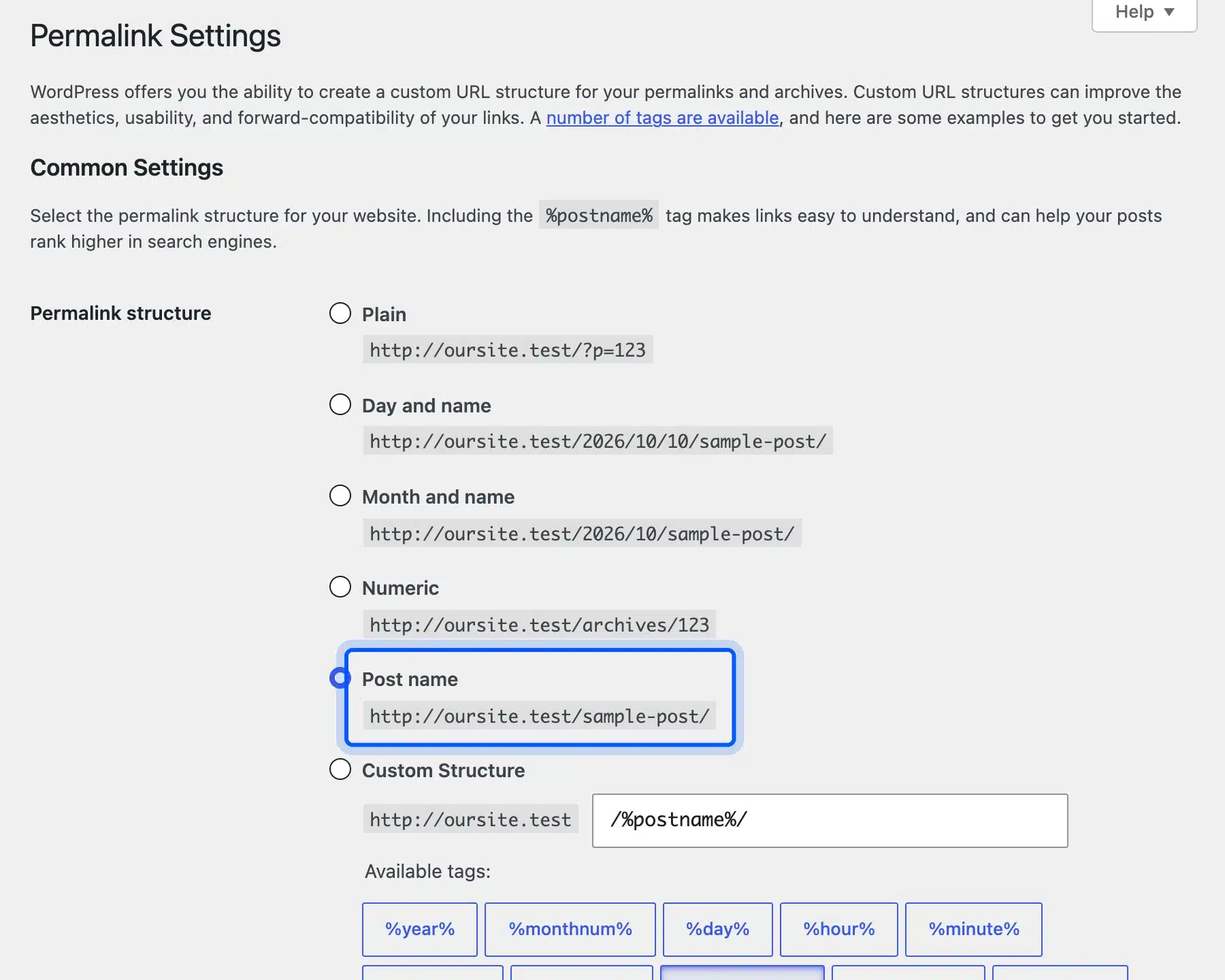
Portfolio SEO starts with three settings: clean permalinks, descriptive alt text on every image and images sized for the web. These take ten minutes and help both Google Images and visitors on slow phones. Most portfolio traffic comes from your name and your niche, so title each project with what it is.
Set permalinks to Post name under Settings, then Permalinks. We set it on our test site, which turns a project URL into /coffee-brand-identity/ instead of /?p=6.
Write alt text for every gallery image in the block sidebar. Google’s image SEO best practices say alt text helps it understand the subject of an image, so describe what is in the picture.
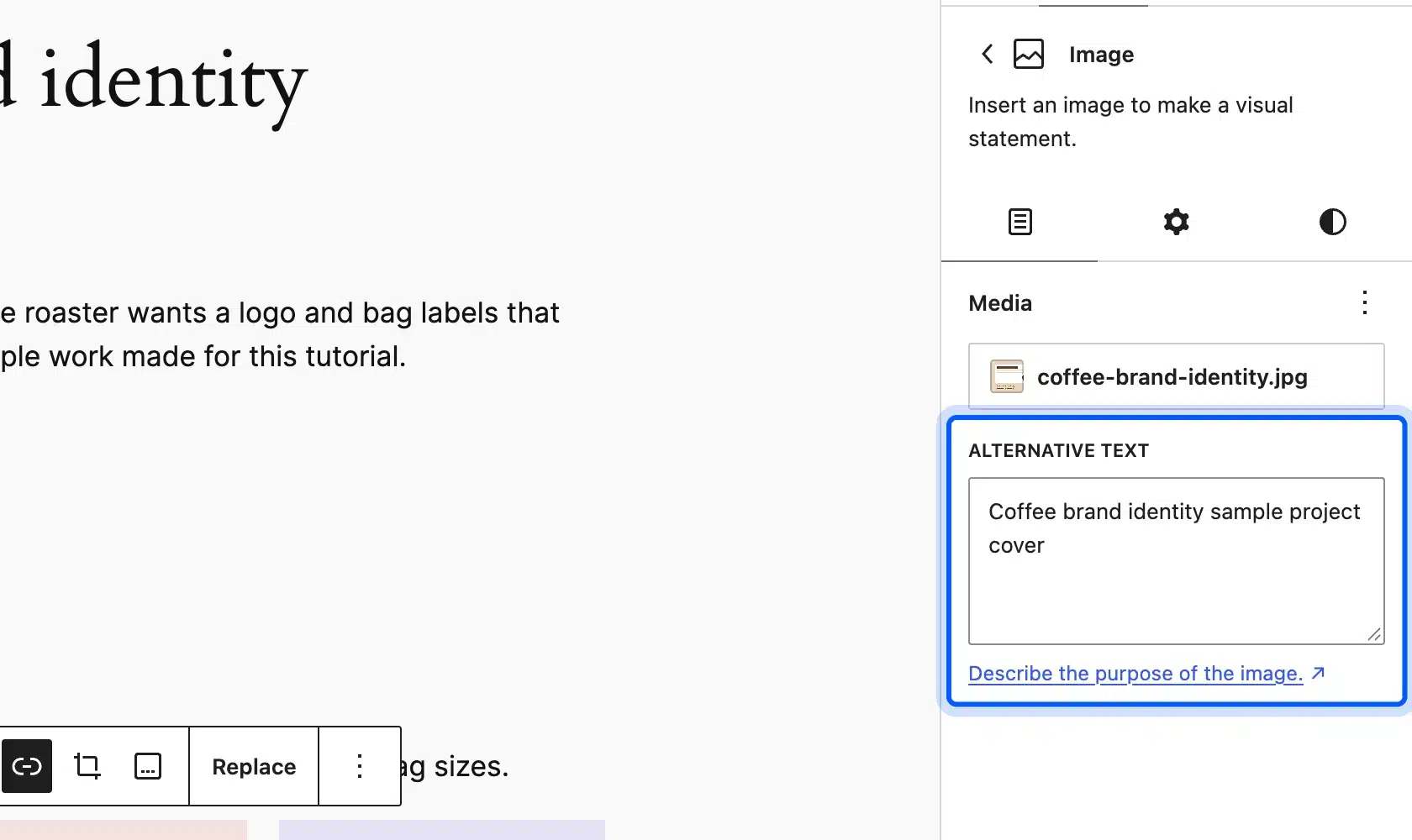
Our guide to adding alt tags to images in WordPress covers bulk edits in the Media Library. WordPress already helps with file size. One 1600 x 1100 JPEG of 67 KB produced five extra sizes on upload, and the 1024 px copy weighed 31.5 KB.
So export covers at about 1600 px wide before uploading, never straight from a 6000 px camera file. Our WordPress image optimization guide covers WebP conversion and compression plugins for heavier galleries.
Mistakes We Hit While Building the Test Portfolio
Building our sample portfolio turned up four mistakes: old setting names, a blog as the home page, the shortcode habit and plugin creep. None of them breaks the site, but each makes the work look weaker. All four took under five minutes to fix.
Here is what went wrong and the fix for each:
- Old setting names: We looked for “Expand on click” and found Enlarge on click instead. Search the menu for the new name rather than trusting an older guide.
- Blog as the home page: A fresh install shows your latest posts at the root URL. Until you set a static page, visitors land on project posts in date order instead of the grid.
- Shortcode habit: Older guides paste a form shortcode everywhere. Contact Form 7 6.2.1 now tucks it behind a toggle and points you to its block instead.
- Plugin creep: The whole build needed one plugin. Read about how many plugins is too many before adding sliders, galleries and builders that core blocks already cover.
Note: Test content is easy to forget. Delete or relabel every sample project before you share the site with a client.
Conclusion
A WordPress portfolio needs less than most guides suggest. A free block theme, a Projects category, a Query Loop grid and core galleries cover the work itself, and one free form plugin covers contact.
Spend your time on the case studies instead of the tooling. Four steady headings, real images with alt text and a clear contact button do more for hiring than a fancy theme. Build the eight steps once, and every new project after that is one new post.
Frequently Asked Questions (FAQs)
Q1. Is WordPress good for a portfolio?
Yes, for most designers, writers and developers. Block themes like Twenty Twenty-Four include portfolio patterns, and core blocks handle grids and galleries. You also own your files, so you can move hosts or themes without rebuilding the work.
Q2. Can I make a WordPress portfolio for free?
Yes. WordPress, Twenty Twenty-Four and Contact Form 7 all cost nothing, and our test build used no paid add-ons. You still pay for hosting and a domain on a self-hosted site, unless you use a free hosted plan with its limits.
Q3. How do I create a writing portfolio on WordPress?
Use the same build, but make each piece a post in a Writing category. Add a short excerpt, the publication name and a link to the original article. A Query Loop with a list layout often suits writing better than an image grid.
Q4. What is the best free WordPress portfolio theme?
There is no single best one, but default themes are a safe start because the WordPress team keeps them updated. Twenty Twenty-Four ships 57 patterns, including portfolio home and project templates. Try two or three block themes on a test copy before you pick.
Q5. Should I use a portfolio plugin or posts for projects?
Use posts in a Projects category for up to a few dozen projects. A plugin with its own project post type pays off when you need custom fields on hundreds of items. The tradeoff is that the content depends on that plugin to display.
Q6. How many projects should a portfolio show?
Six to twelve is a good range for a first launch. Show only work you want more of, since every piece tells visitors what to hire you for. Remove older or weaker items as better ones come in.
Q7. How do I add a portfolio to an existing WordPress site?
Create a Projects category and a Work page with a Query Loop filtered to it. Your current theme and pages stay as they are. Then add the Work page to your menu so visitors can find it.