
The WordPress REST API is the built-in interface that lets any app read and change a WordPress site with plain HTTP requests and JSON. Every site has it at /wp-json/, and you can make your first request in under a minute with curl.
Every command and response in this guide ran on our WordPress 7.1.3 test site on PHP 8.3 in October 2026. We added WooCommerce 11.2.1 for the store part. The error messages are the exact JSON WordPress sent back, including a couple that surprised us.
Below you get the /wp-json/ index, GET requests with _fields, per_page and search, and authentication with Application Passwords. Then come creating a post with curl and a custom endpoint with a proper permission_callback. The last parts cover the error codes you will hit and how to limit the API safely.
What Is the WordPress REST API?
The WordPress REST API is a set of URLs, called endpoints, that return site data as JSON and accept changes over HTTP. It has been part of WordPress core since version 4.7 in 2016. The block editor, mobile apps and most integrations use it to talk to your site.
A route is the URL path, like /wp/v2/posts, and an endpoint is a route plus an HTTP method. On that one route, GET lists posts and POST creates one.
Routes are grouped into namespaces. Core uses wp/v2, and plugins add their own, like wc/v3 for WooCommerce or dd/v1 for the custom route we build later.
Everything comes back as JSON, the same text format JavaScript uses for objects. That is why the wp json API works from any language: PHP, Python, a shell script or a phone app can all read it.
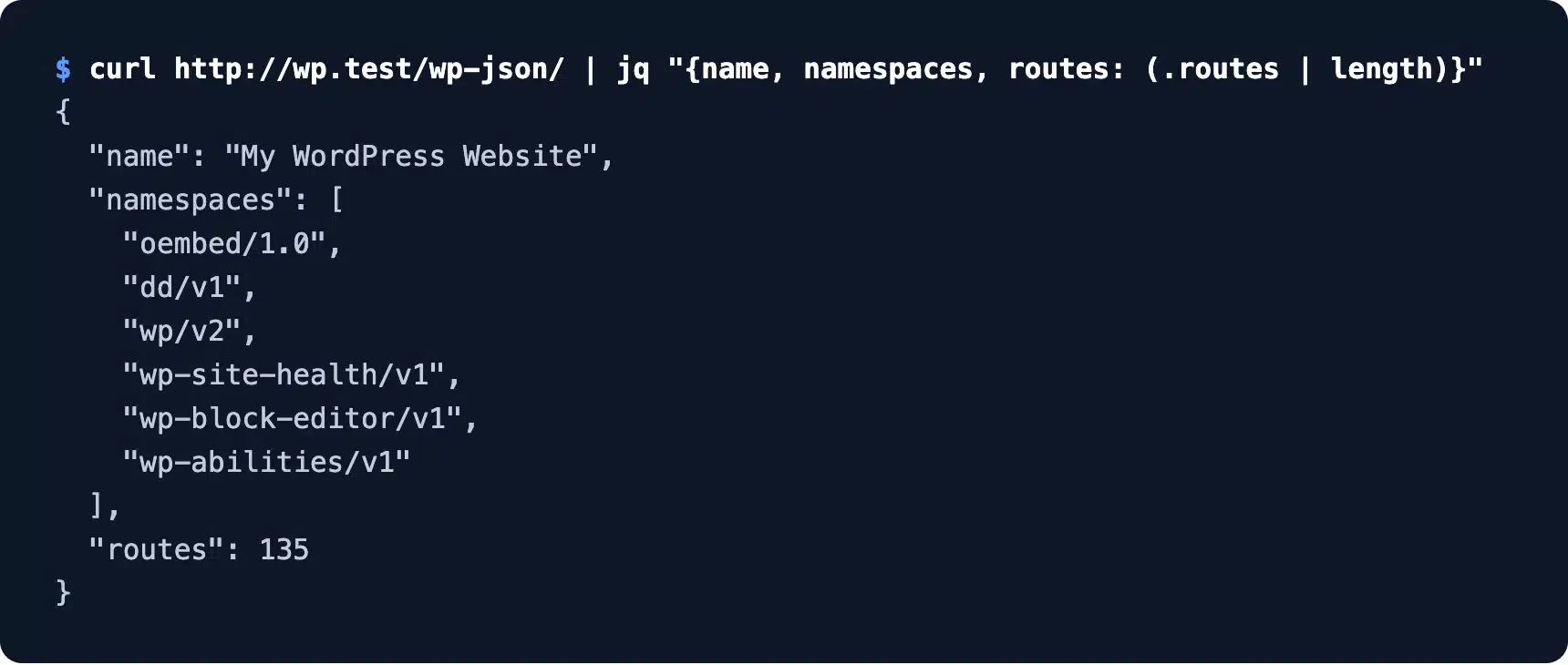
Our clean test site reported 135 routes across six namespaces. Adding WooCommerce 11.2.1 pushed that to 663 routes, which shows how much a single plugin adds to the public surface.
The block editor is the biggest user on most sites. Every time you save a post, the editor sends it to /wp/v2/posts/<id>, so a broken API usually shows up first as a failed save.
That is also why the API matters to store owners who never write code. Payment apps, mobile apps and sync tools all depend on it working.
If you want the version history around 4.7, our WordPress version history lists every major release and what it shipped.
How to Find Your WordPress API Endpoints
Find every WordPress API endpoint by opening /wp-json/ on your site, which returns an index of all namespaces and routes. Each route lists the methods it accepts and the arguments it takes. Add ?_fields=namespaces or pipe the output through jq to keep it readable.
Here is the request we ran, trimmed to the parts you care about first:
curl http://wp.test/wp-json/ | jq "{name, namespaces, routes: (.routes | length)}"
Swap wp.test for your own domain. The same index also lists authentication, which tells you which login methods the site accepts.
The core routes you will use most are these:
- Posts and pages:
/wp/v2/postsand/wp/v2/pageslist, create and edit content. - Media:
/wp/v2/medialists uploads and accepts new files. - Taxonomies:
/wp/v2/categoriesand/wp/v2/tagsmanage terms. - Users:
/wp/v2/userslists authors, and/wp/v2/users/mereturns whoever is logged in. - Comments:
/wp/v2/commentsreads and moderates comments. - Settings:
/wp/v2/settingsreads and changes the site title and similar options for admins. - Search:
/wp/v2/searchsearches posts, pages and terms in one call.
Plugin routes sit in the same index under their own namespace. Search the output for a plugin’s slug to find every route it added. That helps when a security scan lists an endpoint you do not recognize.
Each route in the index also carries its args, the parameters it accepts with their types and defaults. Reading those beats guessing, and it is the same schema WordPress uses to validate your request.
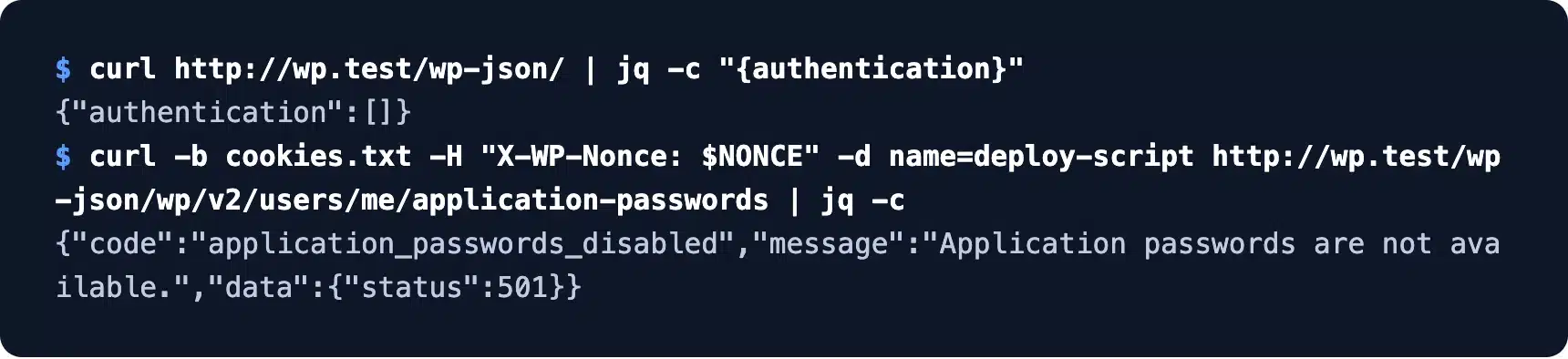
On our test site that field read application-passwords. When we turned off the local environment setting, the same field came back as an empty list. That is your first hint that Application Passwords are off.
Tip: Sites with plain permalinks still answer at /?rest_route=/wp/v2/posts. We ran that form on our test site and got the same JSON, so use it when /wp-json/ returns a 404.

How to Read Posts With GET Requests
Read posts with a GET request to /wp-json/wp/v2/posts, which works without logging in for anything already public. Add per_page to set the page size and _fields to return only the keys you need. Add search to filter by a word in the title or content.
This request asks for two posts and only three fields:
curl "http://wp.test/wp-json/wp/v2/posts?per_page=2&_fields=id,title.rendered,link" | jq
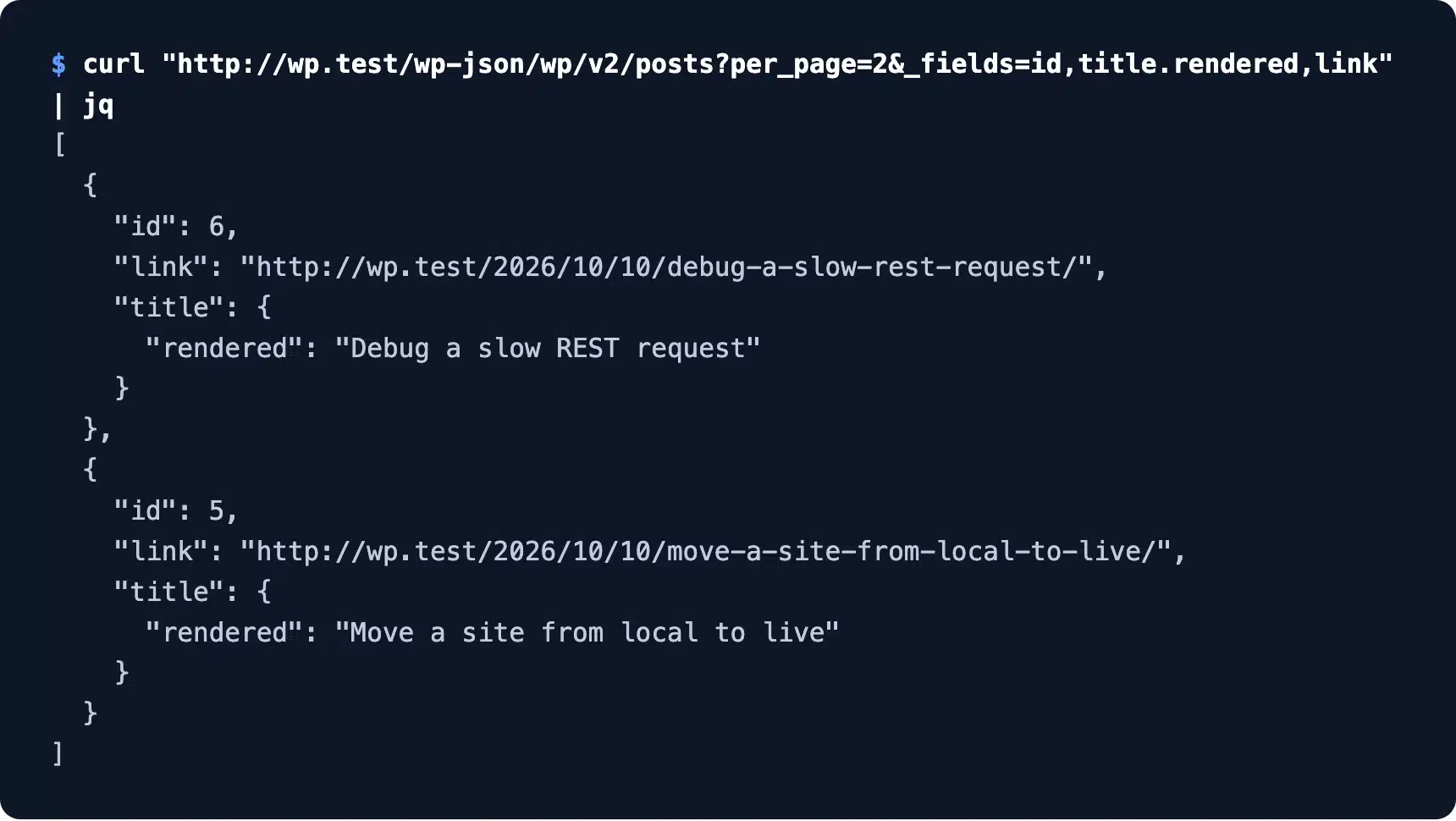
The _fields parameter is one of the global parameters every endpoint accepts. It cut each post down to a few lines, which matters when you pull hundreds of them into another app.
Two more global parameters save requests. _embed adds the author, featured image and terms to each post in the same response.
The context=edit parameter returns raw fields like title.raw to logged-in editors. Anonymous requests with it get refused, which is a quick way to test whether your credentials arrived.
The posts route also takes its own filters, such as orderby, order, categories, after and before. Combine them with _fields and one request replaces a custom SQL query.
Search works the same way. Our search=local request matched two of four posts, and the pagination headers told us the total without counting anything ourselves.
curl -sI "http://wp.test/wp-json/wp/v2/posts?per_page=2" | grep -i x-wp
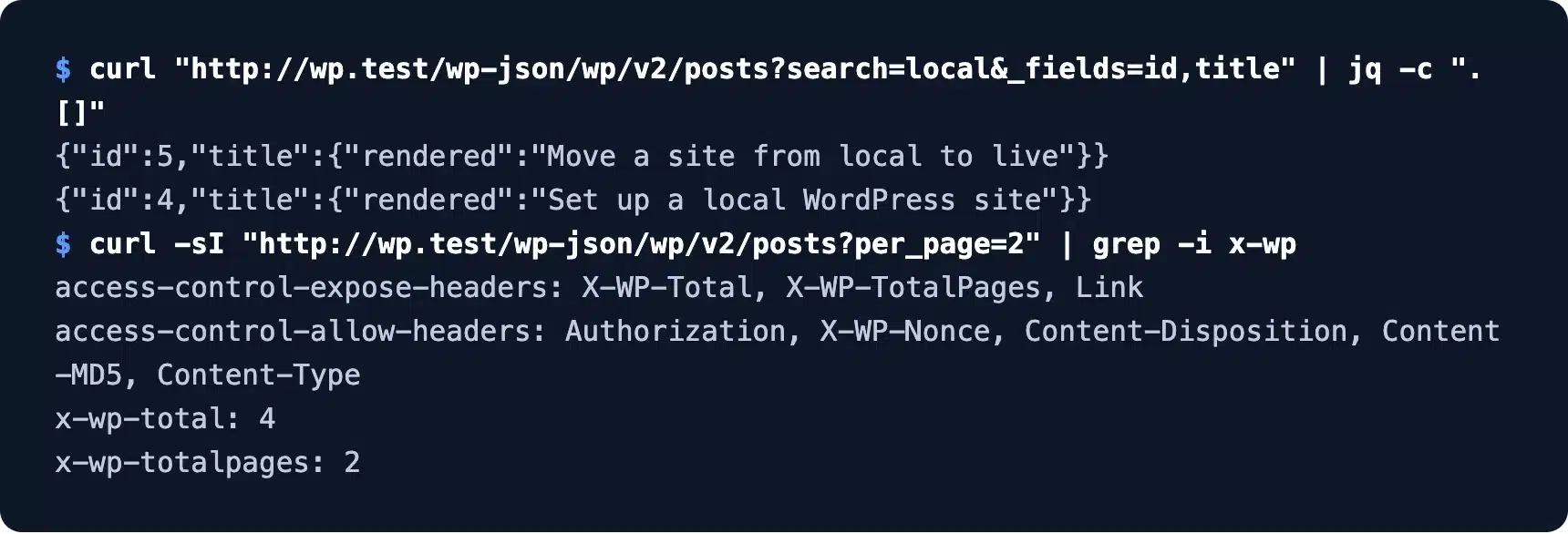
With four posts and per_page=2, the headers read x-wp-total: 4 and x-wp-totalpages: 2. Loop until the page number reaches that second value and you have every post.
The page size has a hard ceiling. A request with per_page=101 came back as a 400 error saying it “must be between 1 (inclusive) and 100 (inclusive)”, which matches the pagination docs.
WordPress REST API Authentication
WordPress REST API authentication has two built-in methods. Cookie authentication with a nonce serves code inside WordPress, and Application Passwords serve scripts and outside apps. Public reads need neither, but anything that writes data or reads private data needs one of the two.
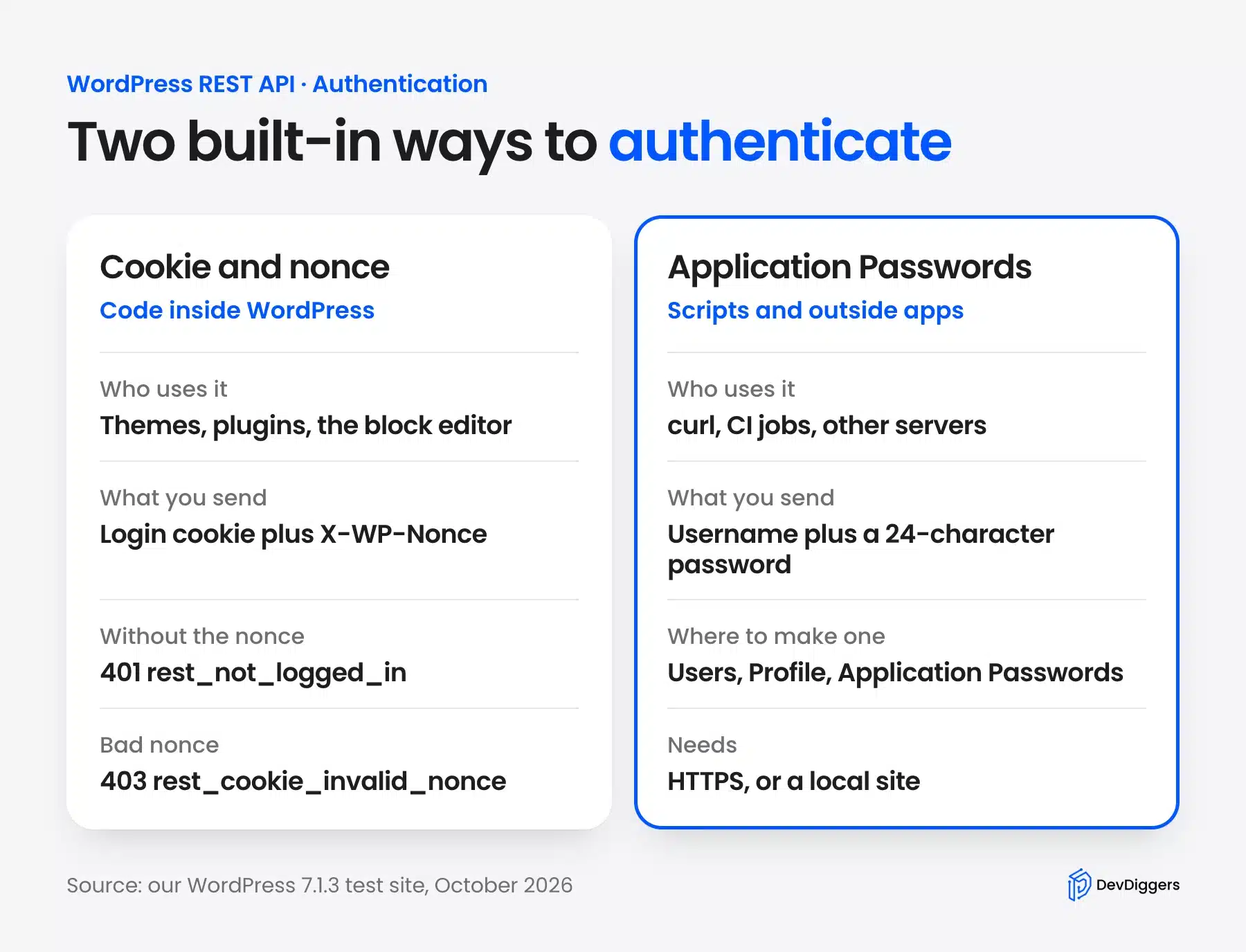
The authentication handbook page covers both. We tested each one, and the failures taught us more than the successes.
Application Passwords
Application Passwords are separate 24-character passwords you create per app under Users, Profile. You send them with HTTP Basic auth, and each one can be revoked on its own. They cannot be used to log in to wp-admin.
Scroll to the Application Passwords section on your profile, type a name like curl-test and click Add Application Password. WordPress shows the password once, so copy it before you close the notice.
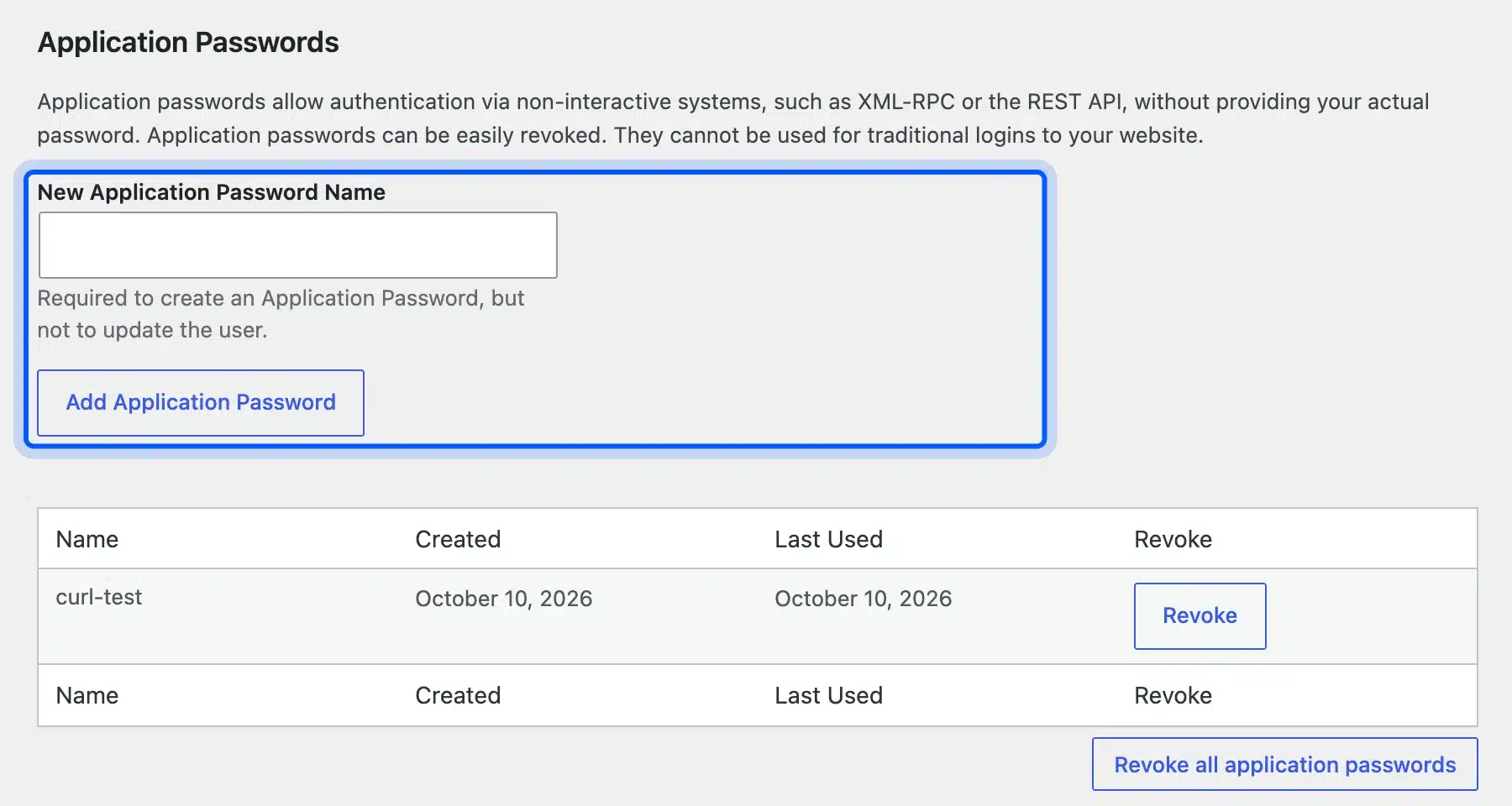
Each password row shows when it was created and last used, with a Revoke button next to it. Give every app its own password, so you can cut off one integration without breaking the others.
Then send it with -u, using your username and the new password. We keep it in an environment variable so it never sits in shell history:
export APP_PASS="xxxx xxxx xxxx xxxx xxxx xxxx"
curl -u "admin:$APP_PASS" "http://wp.test/wp-json/wp/v2/users/me?_fields=id,name,roles&context=edit"
That returned our admin user with the administrator role. The spaces in the password are fine, because WordPress accepts it with or without them.
There is one condition that trips people up. Application Passwords only appear on sites served over HTTPS, or on sites marked as local with WP_ENVIRONMENT_TYPE.
We checked this on our test site over plain HTTP with no environment type set. Creating a password returned application_passwords_disabled with a 501 status and the message “Application passwords are not available.”
Cookie Authentication and the Nonce
Cookie authentication is what the block editor and your own admin JavaScript use. The login cookie alone is not enough: WordPress also needs a wp_rest nonce sent in the X-WP-Nonce header. Without the nonce it treats the request as logged out.
We proved that with a real login cookie. The request without a nonce came back as rest_not_logged_in with a 401, even though the cookie was valid.
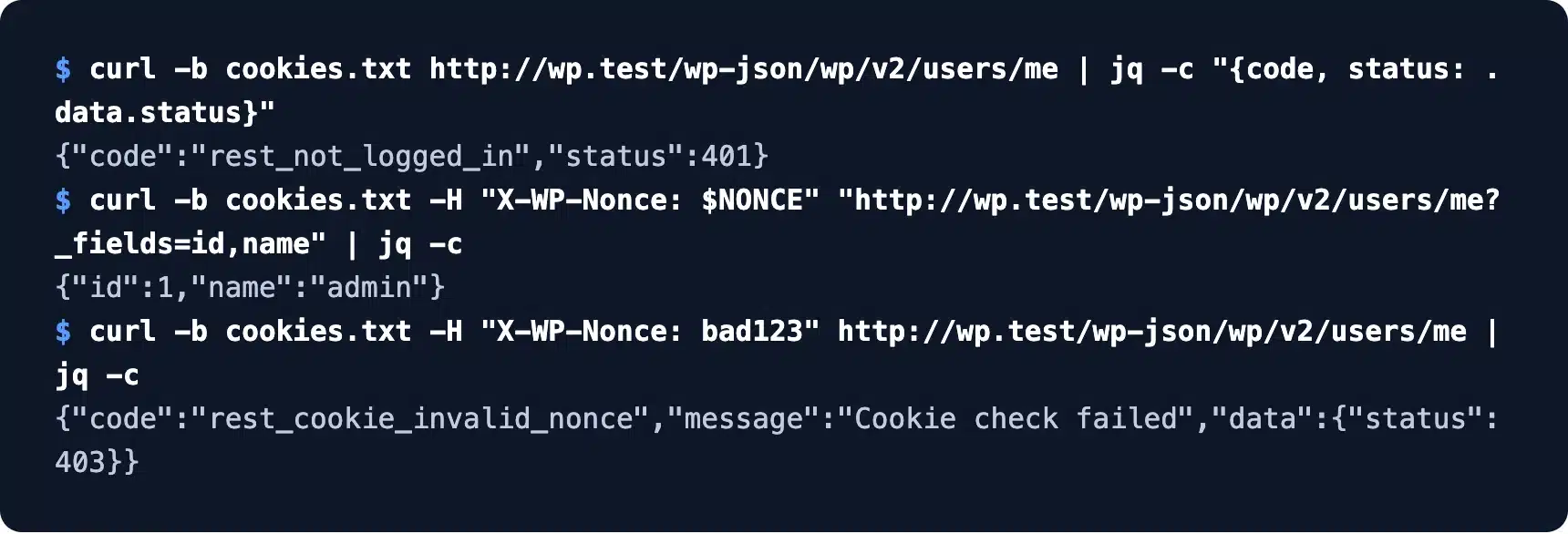
With a fresh nonce the same request returned our user. A made-up nonce gave rest_cookie_invalid_nonce, “Cookie check failed”, with a 403.
Inside WordPress you rarely build that header by hand. Enqueue the JavaScript file with wp-api-fetch as a dependency and apiFetch() sends the nonce for you:
wp.apiFetch( { path: '/wp/v2/posts?per_page=5&_fields=id,title' } ).then( ( posts ) => {
	console.log( posts );
} );
Front-end code that runs for logged-out visitors needs no nonce for public reads. Add one only when the request writes data or reads something private.
The path is relative to /wp-json/, so the same code keeps working if the site moves to a new domain. Nonces expire after a while, which is why long-open admin tabs sometimes need a reload before saving.
How to Create a Post With curl
Create a post with curl by sending a POST request to /wp-json/wp/v2/posts with an Application Password and a JSON body. The body needs at least a title, and status decides whether it goes live. WordPress replies with the full new post, including its ID.
This is the exact request we ran:
curl -u "admin:$APP_PASS" -X POST http://wp.test/wp-json/wp/v2/posts \
  -H "Content-Type: application/json" \
  -d '{"title":"Posted from curl","content":"Hello from the REST API.","status":"draft"}'
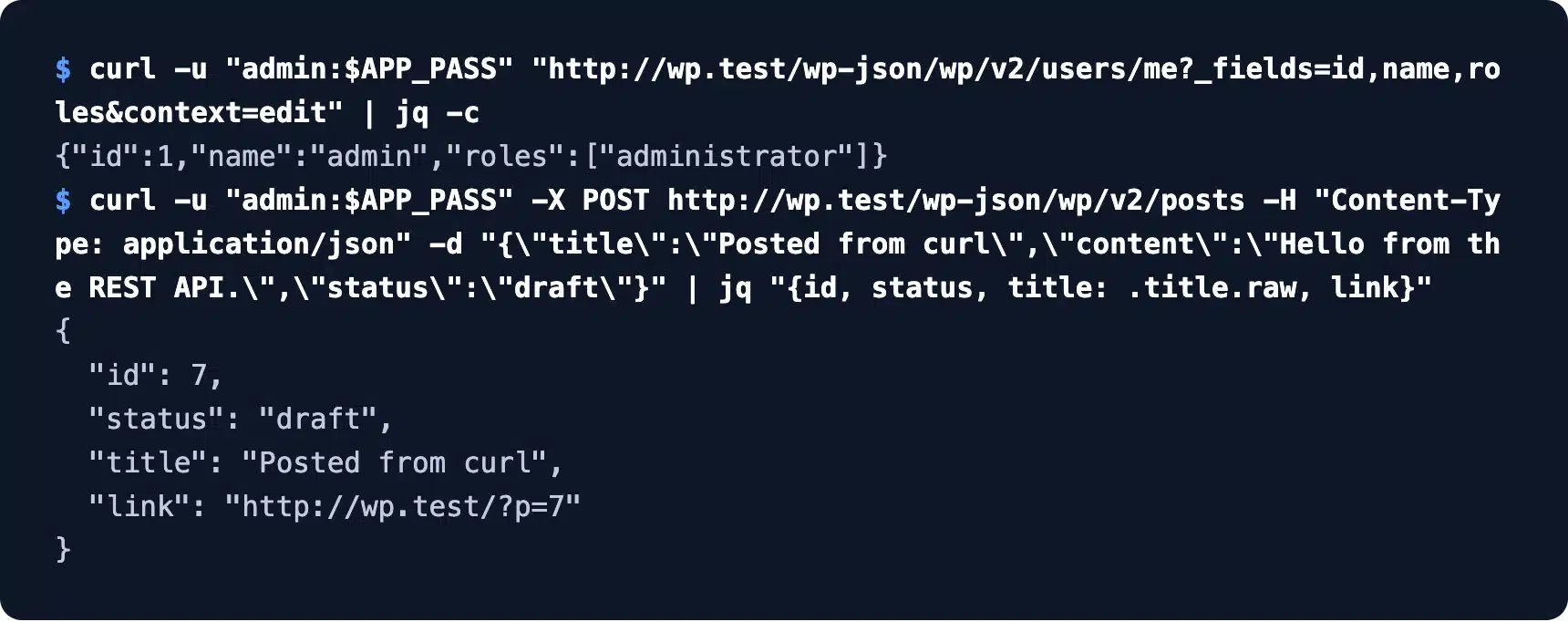
It returned post ID 7 with status draft. We set it to draft on purpose, because a typo in a script that publishes is a typo your readers see.
The new post showed up in wp-admin at once, under Posts with the Draft label. Its author was the user tied to the Application Password.
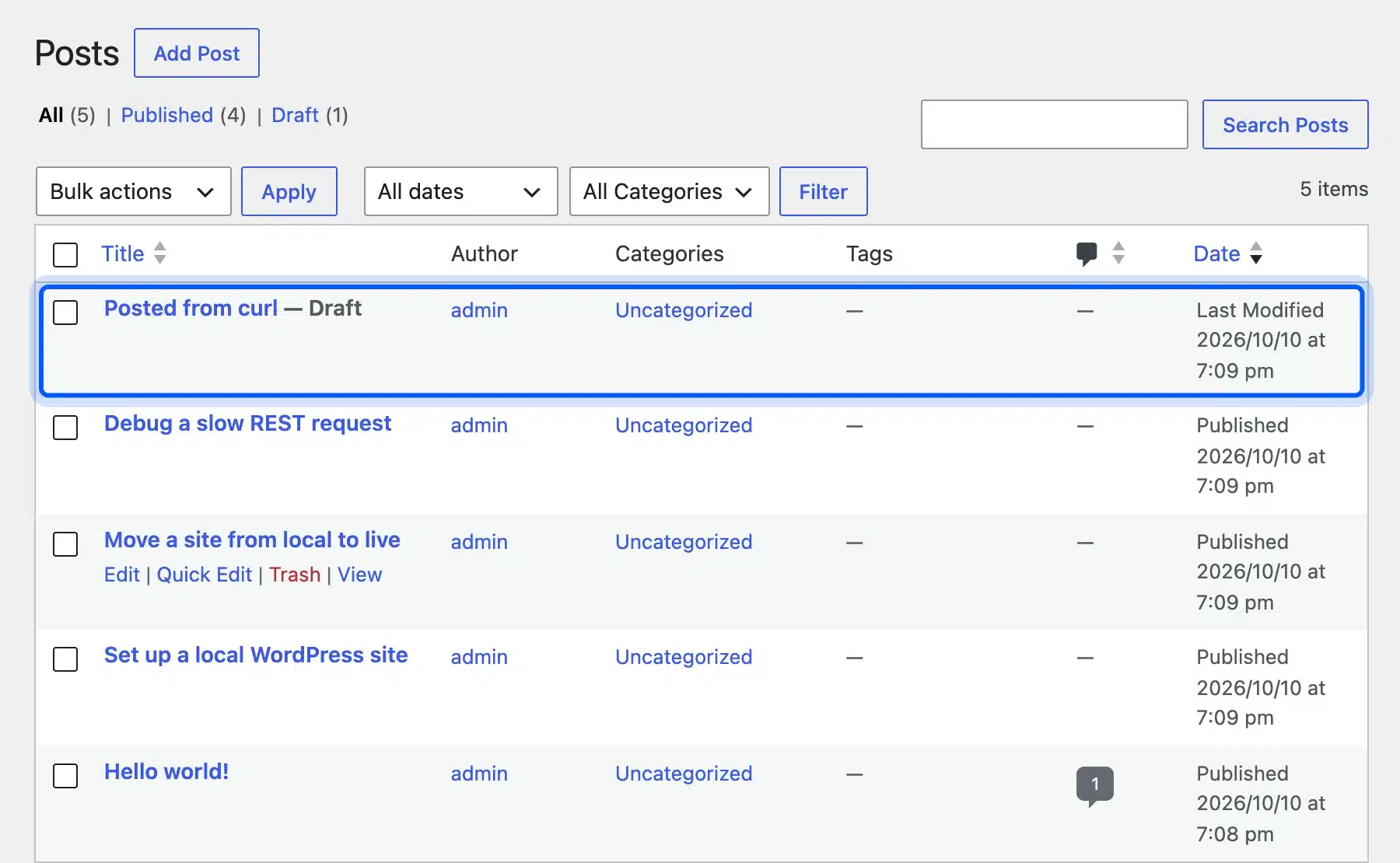
The same pattern updates and deletes. Send POST or PUT to /wp/v2/posts/7 with the fields to change, or DELETE to the same URL to move it to the trash.
Add ?force=true to a DELETE and the post skips the trash and is gone for good. Leave it off in scripts until you trust them, because the trash is your only undo.
Categories and tags go in as ID numbers. Look the IDs up first with /wp/v2/categories?search=news&_fields=id,name, then send "categories":[5] in the post body.
The featured image works the same way. Upload the file to /wp/v2/media first, take the id from the reply and send it as featured_media on the post.
Updates only change the fields you send. A request with just {"status":"publish"} publishes post 7 and leaves its title, content and author as they were.
How to Add a Custom Endpoint With register_rest_route
Add a custom endpoint by calling register_rest_route() on the rest_api_init hook with a namespace, a route, a callback and a permission_callback. The permission callback decides who may call it. Put the code in a small plugin or a must-use plugin so a theme switch cannot remove it.
Our test route returns published and draft post counts, and only users who can edit posts may call it. We saved it as a file in wp-content/mu-plugins/:
<?php
/**
 * Plugin Name: Post Counts Endpoint
 * Description: Read-only REST route that lists draft and published post counts for editors.
 */

add_action( 'rest_api_init', function () {
	register_rest_route(
		'dd/v1',
		'/post-counts',
		array(
			'methods'             => WP_REST_Server::READABLE,
			'callback'            => 'dd_post_counts',
			'permission_callback' => function () {
				return current_user_can( 'edit_posts' );
			},
			'args'                => array(
				'type' => array(
					'default'           => 'post',
					'sanitize_callback' => 'sanitize_key',
					'validate_callback' => function ( $value ) {
						return post_type_exists( $value );
					},
				),
			),
		)
	);
} );

function dd_post_counts( WP_REST_Request $request ) {
	$counts = wp_count_posts( $request['type'] );

	return rest_ensure_response(
		array(
			'type'      => $request['type'],
			'publish'   => (int) $counts->publish,
			'draft'     => (int) $counts->draft,
			'generated' => current_time( 'mysql' ),
		)
	);
}
The custom endpoints handbook explains each argument. The important part is that the permission check runs before your callback, so the callback never sees an unauthorized request.
We called the route three ways. A visitor got rest_forbidden with a 401, a subscriber got the same code with a 403, and the admin got the counts.
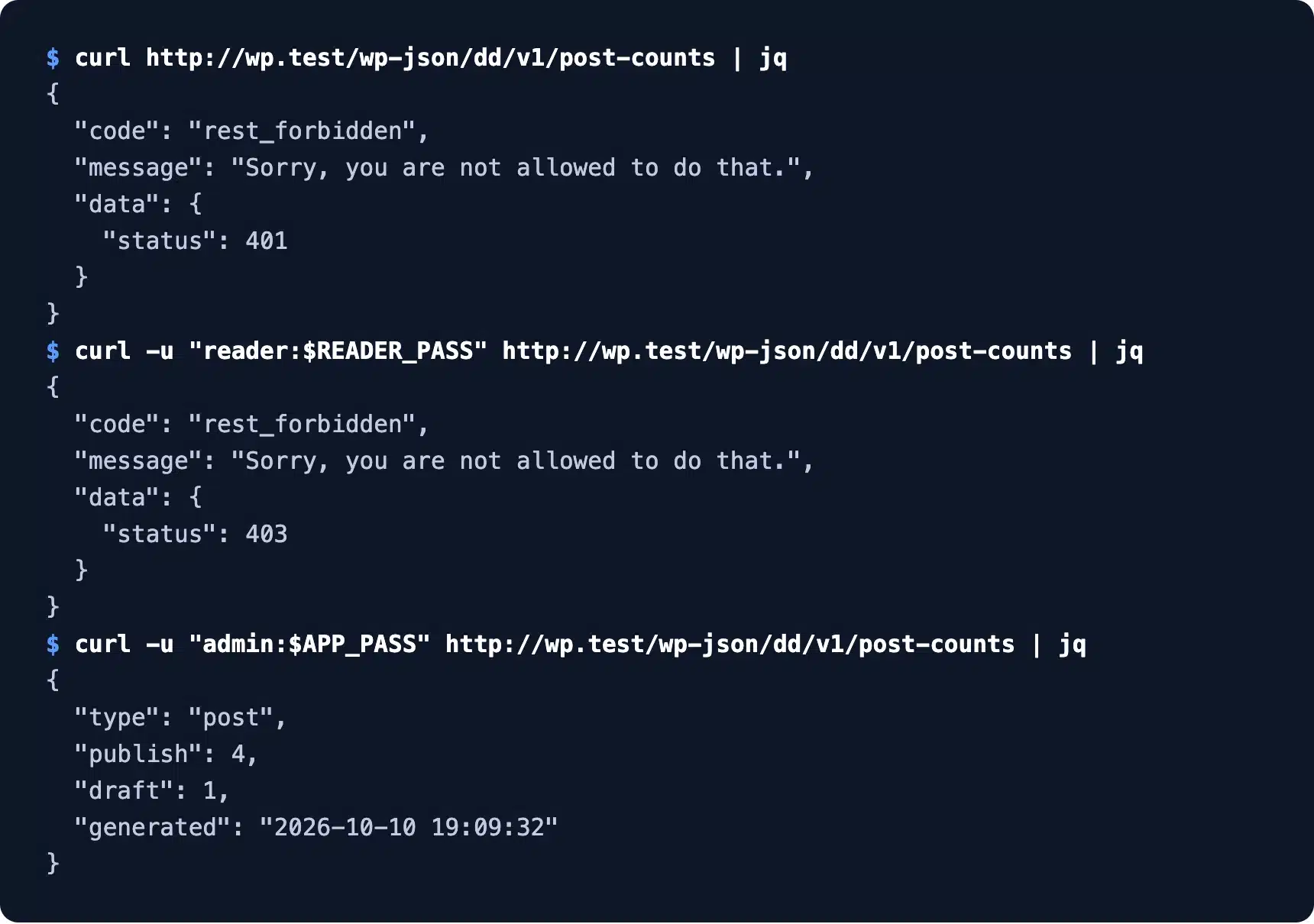
Two details in that code are easy to skip. The sanitize_callback cleans the value, while the validate_callback rejects it outright, and WordPress runs both before your callback.
The callback returns rest_ensure_response(), which turns a plain array into a proper response object. To return your own error, return a WP_Error with a status in its data, and WordPress sends that status code.
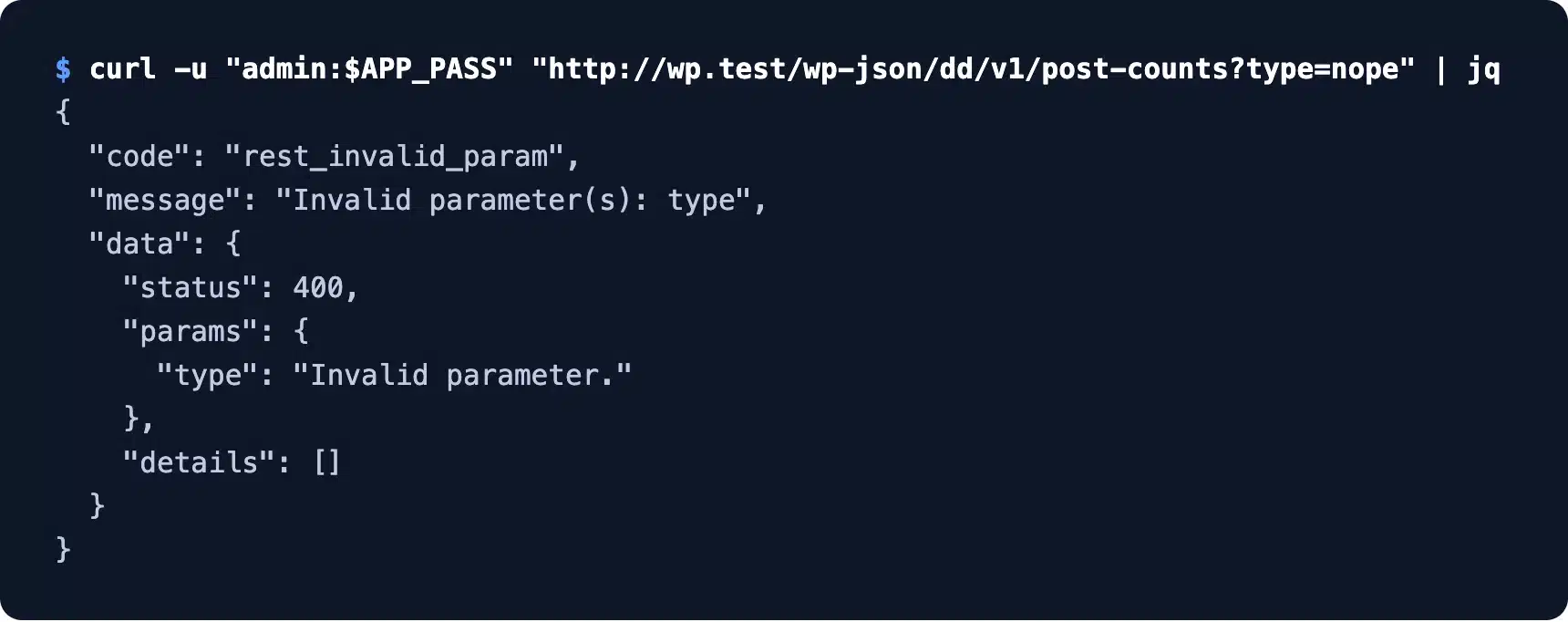
The validate_callback did its job too. A request with type=nope was stopped with rest_invalid_param before our code ran, so a bad post type never reached wp_count_posts().
Warning: Leaving out permission_callback does not lock a route. We registered a test route without it, and it answered visitors with a 200 and our data.
The only sign of trouble was a response header, and only because WP_DEBUG was on. It read x-wp-doingitwrong and said the route was “missing the required permission_callback argument”.
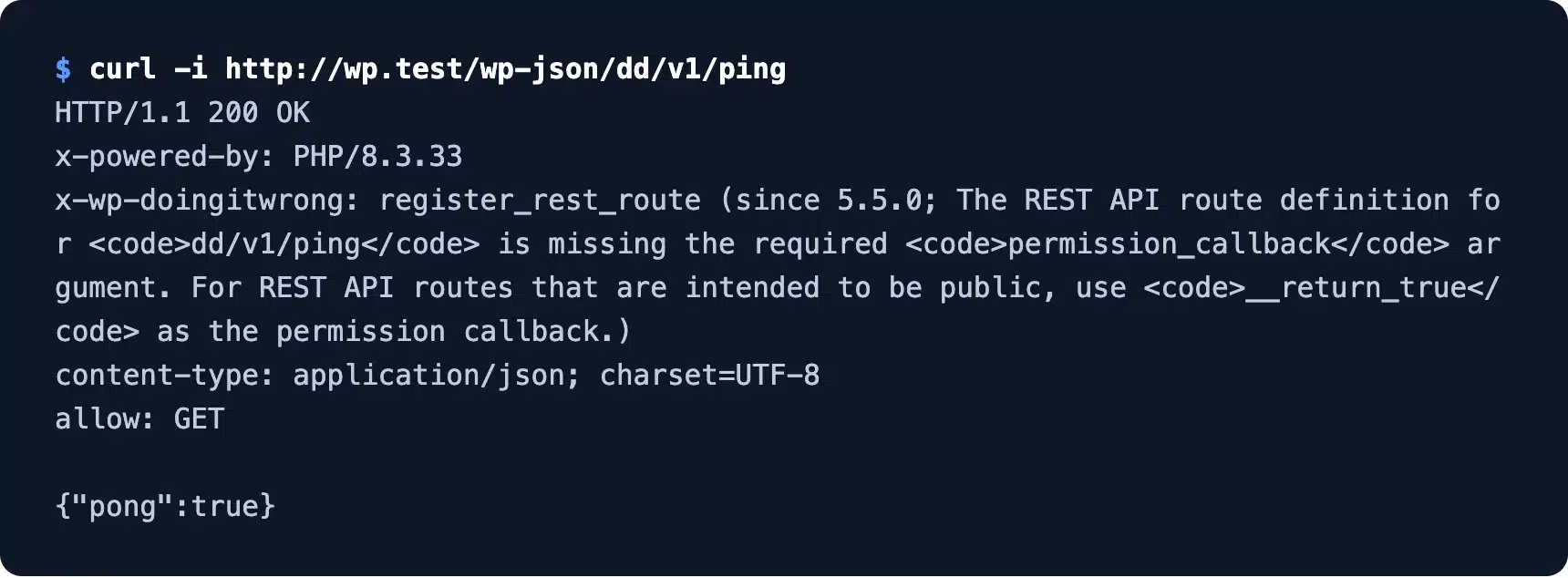
For a route that is meant to be public, pass __return_true as the callback. That says out loud that you chose public access, and the warning goes away.
What the REST API Error Codes Mean
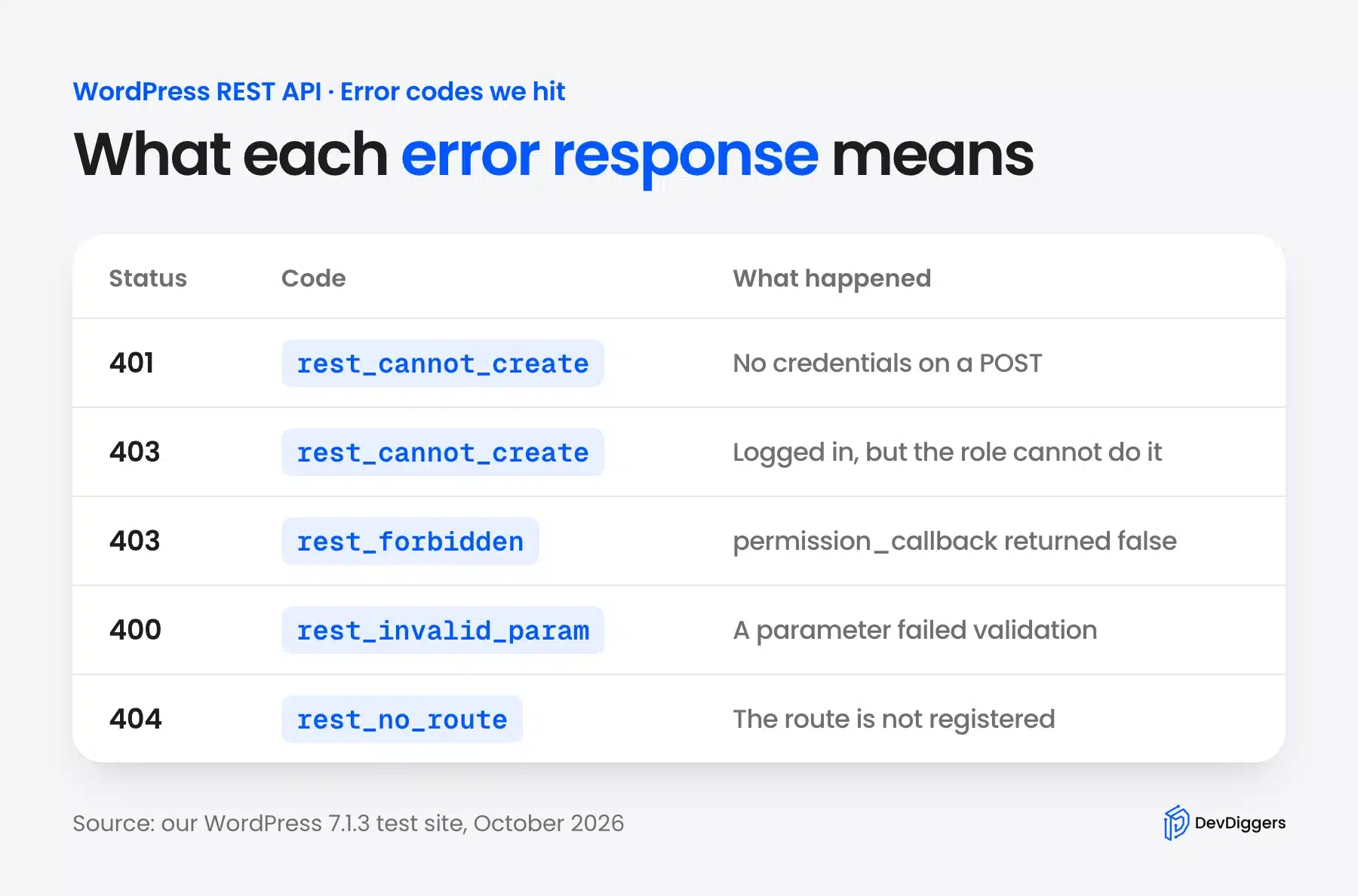
REST API errors come back as JSON with a code, a message and a data.status that matches the HTTP status. A 401 means no valid credentials were sent, and a 403 means the user is known but not allowed. A 400 means a parameter failed validation.
The 401 and 403 split is the one to learn. With no credentials, a POST to /wp/v2/posts returned rest_cannot_create with status 401. A logged-in subscriber got the same code with status 403.
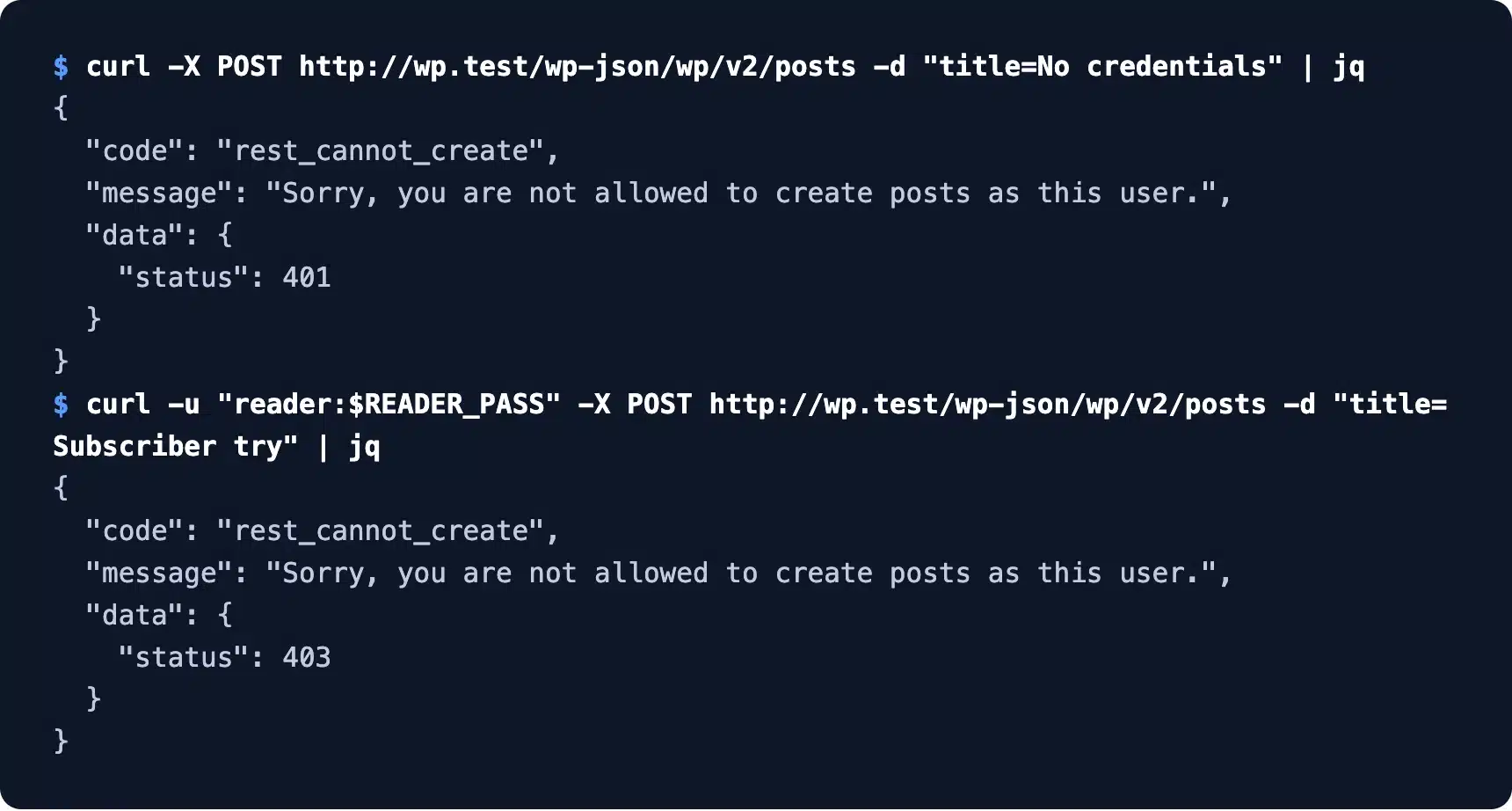
So a 403 is a role problem, and new credentials will not fix it. Check the user’s capabilities before you regenerate any credentials.
One response surprised us. A wrong Application Password returned rest_not_logged_in with a 401, the same code as sending nothing. The error alone will not tell you the password was wrong.
When an error makes no sense, add -i to curl and read the headers first. With WP_DEBUG on, WordPress adds hints there that never reach the JSON body, as the permission warning above showed.
Keep a small table of the codes you have seen, like the one above. Support tickets get solved faster when the first message quotes the exact code and status instead of saying the API is broken.
Two other codes are worth knowing. Asking anonymously for status=draft returned a 400 with rest_forbidden_status inside it, and a route that does not exist returns rest_no_route with a 404.
How to Limit the REST API for Security
Limit the REST API by hiding the endpoints you do not need and requiring a login only where it makes sense. Turning the whole API off breaks the block editor and other plugins. The REST API FAQ warns against disabling it for that reason.
The same FAQ points to the rest_authentication_errors filter when you want to require a login. We tested both a targeted change and that site-wide lock.
Hide the Users Endpoint
The users endpoint lists the names and slugs of everyone with published posts. On our test site an anonymous request returned the admin’s slug, which is half of a login. Hiding that route for visitors removes it without touching anything else.
This filter removes the users routes for anyone not logged in:
add_filter( 'rest_endpoints', function ( $endpoints ) {
	if ( is_user_logged_in() ) {
		return $endpoints;
	}
	unset( $endpoints['/wp/v2/users'], $endpoints['/wp/v2/users/(?P<id>[\d]+)'] );
	return $endpoints;
} );
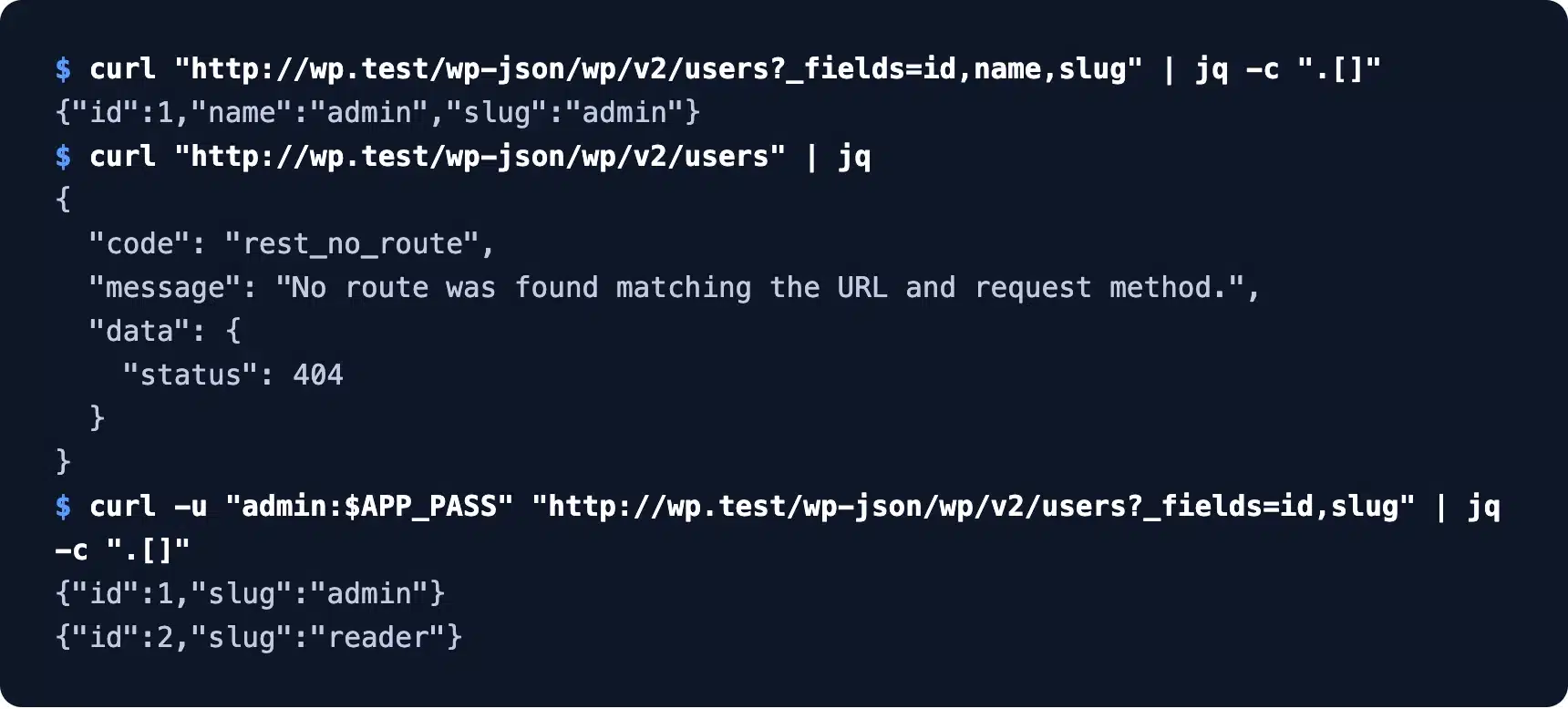
After the change, visitors got rest_no_route with a 404, and our authenticated request still listed both users. Pair it with login attempt limits, since the slug is only useful to someone guessing passwords.
Require a Login for Every Request
A site-wide lock uses rest_authentication_errors to return an error for any visitor who is not logged in. It suits private sites, intranets and staging copies. Public sites lose features with it, so test before you ship it.
add_filter( 'rest_authentication_errors', function ( $result ) {
	if ( true === $result || is_wp_error( $result ) ) {
		return $result;
	}
	if ( ! is_user_logged_in() ) {
		return new WP_Error( 'rest_login_required', 'The REST API on this site is for logged-in users.', array( 'status' => 401 ) );
	}
	return $result;
} );
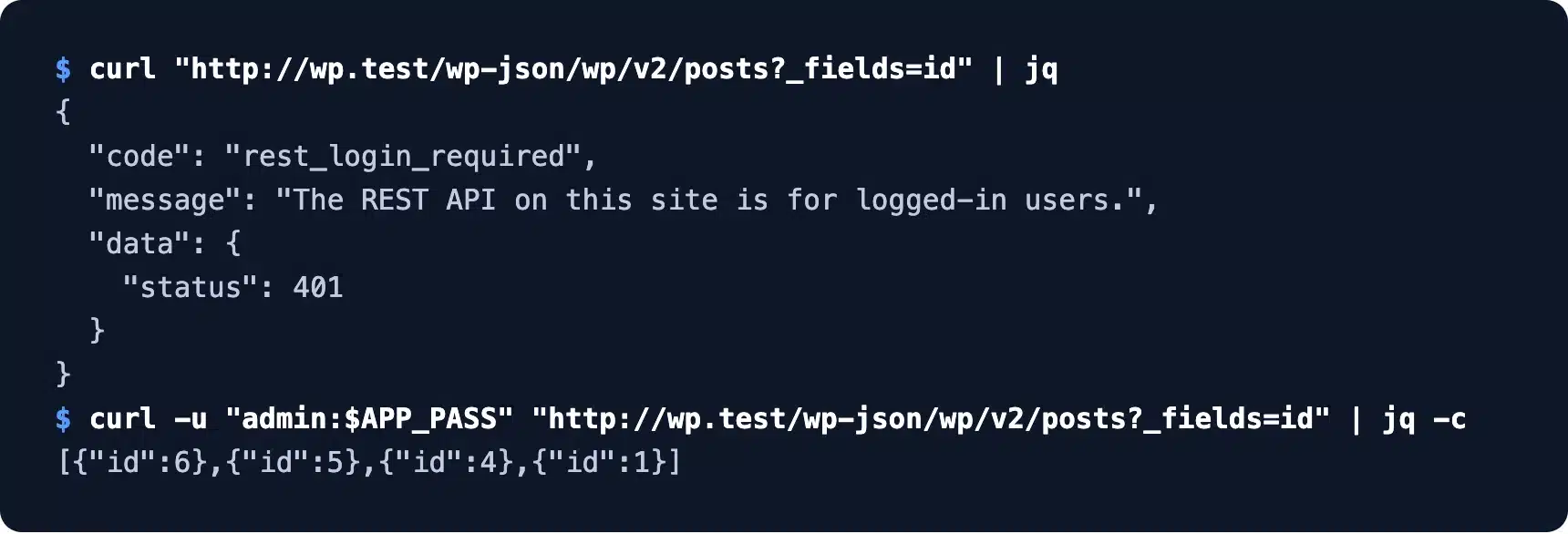
Visitors got our custom 401, and the authenticated request still returned posts. The home page kept loading normally, because pages do not depend on the API.
The cost showed up elsewhere. The oEmbed route also returned our 401, so other sites could no longer embed our posts.
If scrapers are the worry behind the lock, our guide on preventing content scraping on WordPress covers the RSS feed and other routes too. The WordPress security checklist puts this filter in context with the rest of a hardening pass.
Note: CORS is a separate question from authentication. WordPress already sends Access-Control-Allow-Headers for Authorization and X-WP-Nonce, which we saw on every response, so browser apps on other domains mostly need the right credentials.
How the WooCommerce REST API Fits In
WooCommerce adds its own REST API under /wp-json/wc/v3/ for products, orders and customers, plus a public Store API under /wp-json/wc/store/v1/. The wc/v3 routes need authentication. The Store API serves only the data a shopper could see on the store anyway.
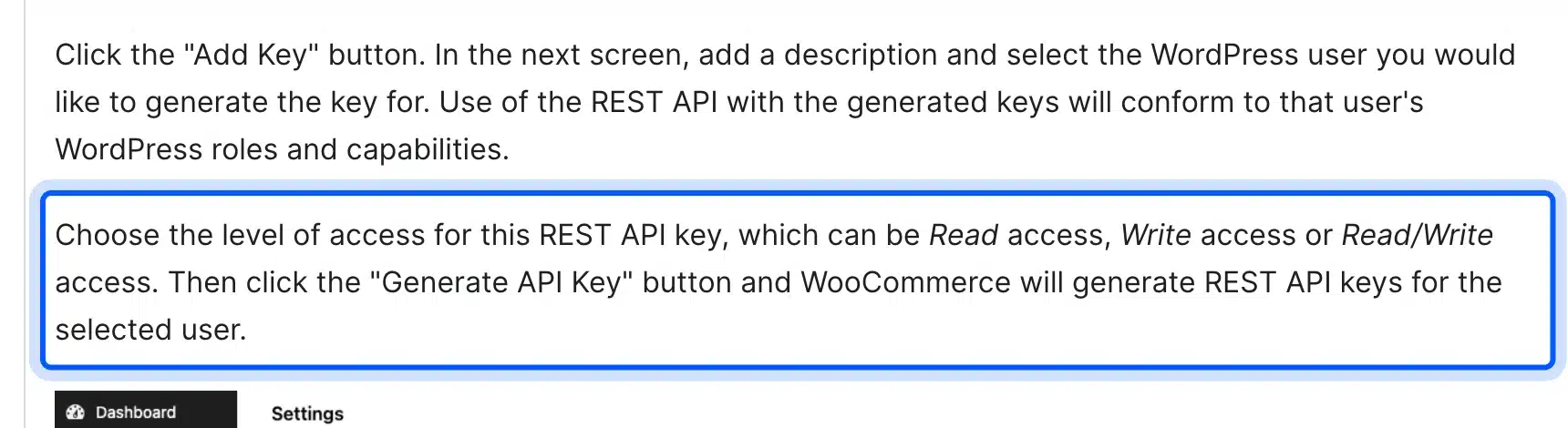
The WooCommerce authentication docs describe consumer keys made under WooCommerce, Settings, Advanced, REST API. Each key gets Read, Write or Read/Write access.
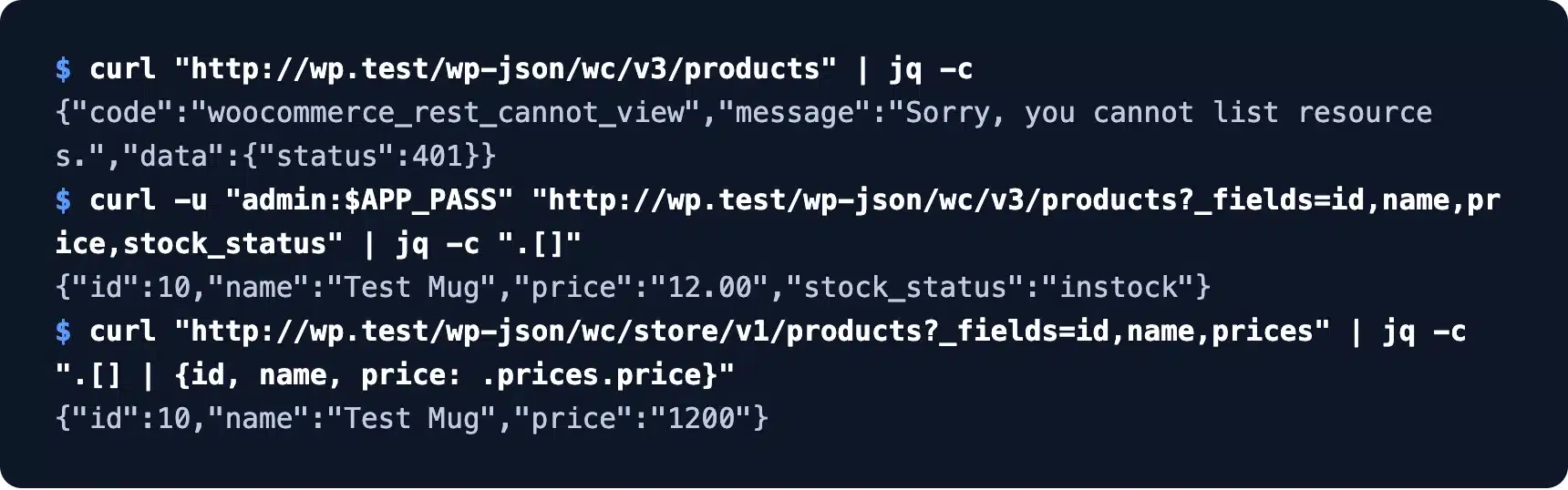
We tested the three cases on our test store with one product. An anonymous call to wc/v3/products returned woocommerce_rest_cannot_view with a 401.
The same call with our WordPress Application Password worked, which shows that wc/v3 accepts normal WordPress authentication too. The Store API answered without any login.
The docs add one rule worth remembering: keys belong to the user who created them. If that WordPress user is deleted, the key stops working, so create store keys under a dedicated account and not a staff member’s login.
The Store API is what block-based cart and checkout pages use. It is safe to call from a public front end because it only exposes products, prices and the visitor’s own cart.
Watch the price format. The wc/v3 route returned "12.00", while the Store API returned "1200" for the same product, because it sends prices in the smallest currency unit.
More plugins mean more routes to secure. WooCommerce alone took our test site from 135 routes to 663. That is a good reason to ask whether 50 plugins are too much for your store.
Conclusion
The WordPress REST API gives you a complete, documented way to read and write a site from anywhere. Start with /wp-json/, use _fields and per_page to keep reads small, and use Application Passwords for every script.
Two test results deserve a place on your checklist. A route without permission_callback stays public, and Application Passwords vanish on plain HTTP sites that are not marked local.
Connecting an AI service to your site starts with the same Application Password step, which our guide to AI integration with WordPress builds on. For custom endpoints or a full integration, our WordPress developers can build and test it for you.
Frequently Asked Questions (FAQs)
Q1. Is the WordPress REST API enabled by default?
Yes. Every WordPress site since version 4.7 serves the REST API at /wp-json/ with no setup. Public content is readable by anyone, while writes and private data need authentication.
Q2. How do I access the WordPress REST API?
Open https://yoursite.com/wp-json/ in a browser or send a GET request with curl. That index lists every route, and /wp-json/wp/v2/posts returns your latest posts as JSON.
Q3. Is the WordPress REST API free?
Yes. It is part of WordPress core and costs nothing to use on any site. You only pay for the hosting that serves the requests, like any other page view.
Q4. Can I disable the WordPress REST API completely?
You can, but the block editor and many plugins stop working. Require a login with the rest_authentication_errors filter or hide single endpoints instead.
Q5. What is the difference between the REST API and admin-ajax?
Both handle requests from JavaScript. The REST API uses clear URLs, HTTP methods and JSON with schema, while admin-ajax.php sends every action through one file.
Q6. Do I need a plugin for JWT authentication?
Only if your app needs tokens. Core ships cookie and Application Password authentication, which cover most scripts and integrations. JWT and OAuth need a third-party plugin.
Q7. Can I build a website with the WordPress REST API?
Yes. The REST API lets a separate front end, such as a React or mobile app, pull content from WordPress. If you want pages built without code, our roundup of WordPress AI website builders is a better starting point.